OBJ to STL Converter: Upright on the Plate, at True Size
Free OBJ to STL converter for up to 20 files at once. Drop an OBJ from Blender, SketchUp or an AI generator: quads and n-gons become triangles, Y-up turns to Z-up, metres or inches become millimetres, and you get binary or ASCII STL. Nothing is uploaded.
- Free, no sign-up
- Quads and n-gons
- Y-up to Z-up, scale to mm
- Watertight check
Upload OBJ
FreeOr open a sample
Runs in your browser. Nothing is uploaded.
Example result
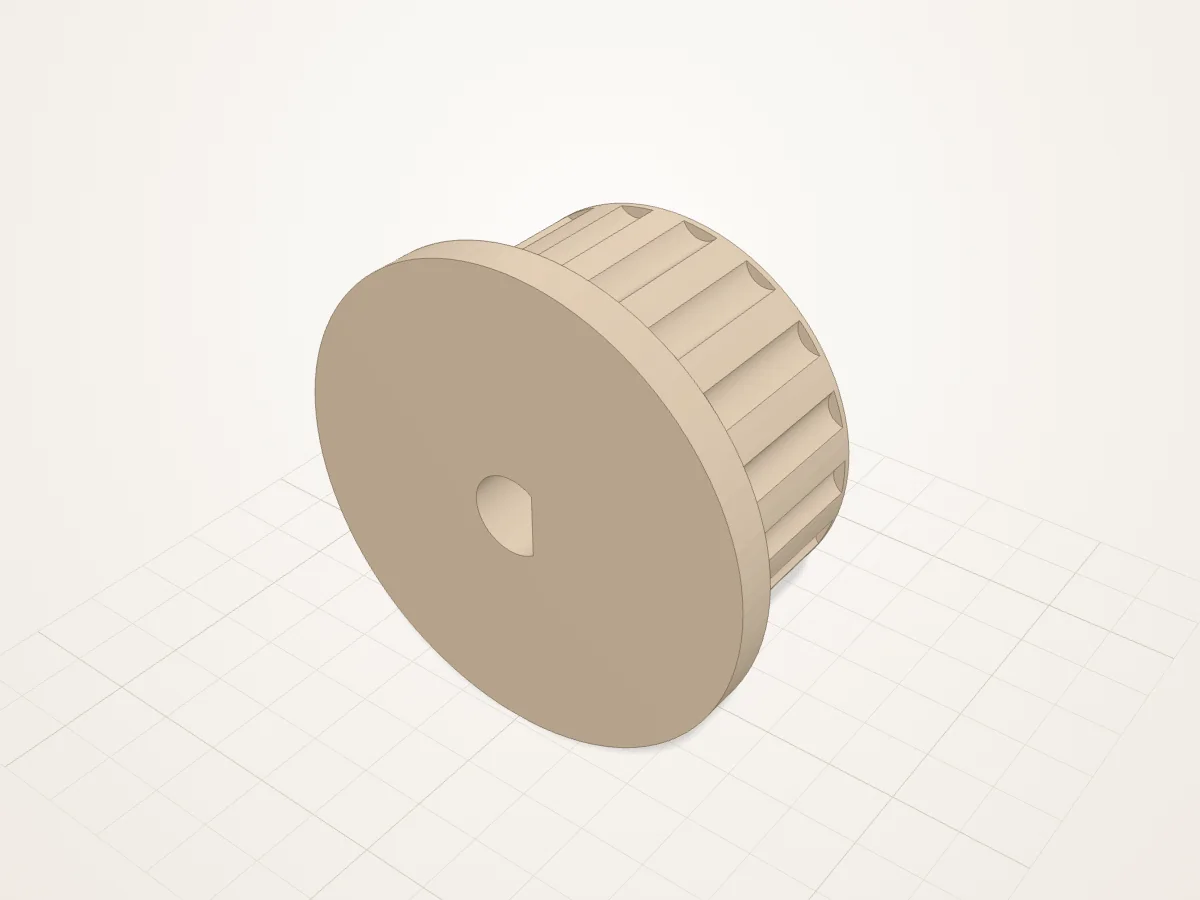
Control knob · OBJ → STL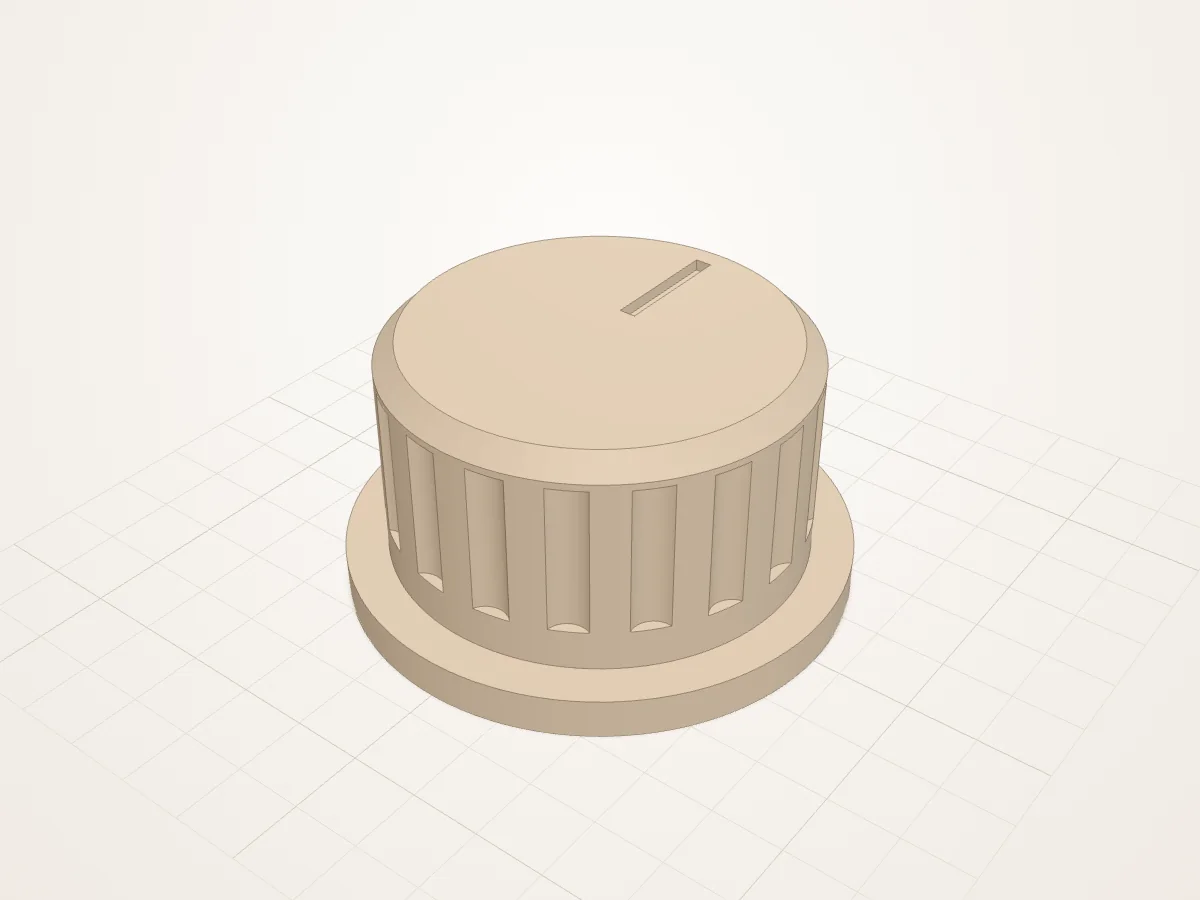
- OBJ
- 328 KB
- STL
- Binary · 207 KB
- Faces
- 4,236 → 4,236 tri
- Up
- Y → Z
- Size
- 36 × 36 × 19 mm
- Watertight
- Yes
Examples
OBJ to STL examples you can open
Four sample OBJ files and one batch, each run through this converter. Drag the divider to compare the OBJ as written with the STL on the plate.
Y-up OBJ
Knurled control knob
Read as is, the knob lies on its side. Turned to Z-up it stands on its base: 4,236 triangles, 328 KB OBJ to 207 KB binary STL.
4,236 faces → 4,236 triangles · 328 KB OBJ → 207 KB STL
Hollow part
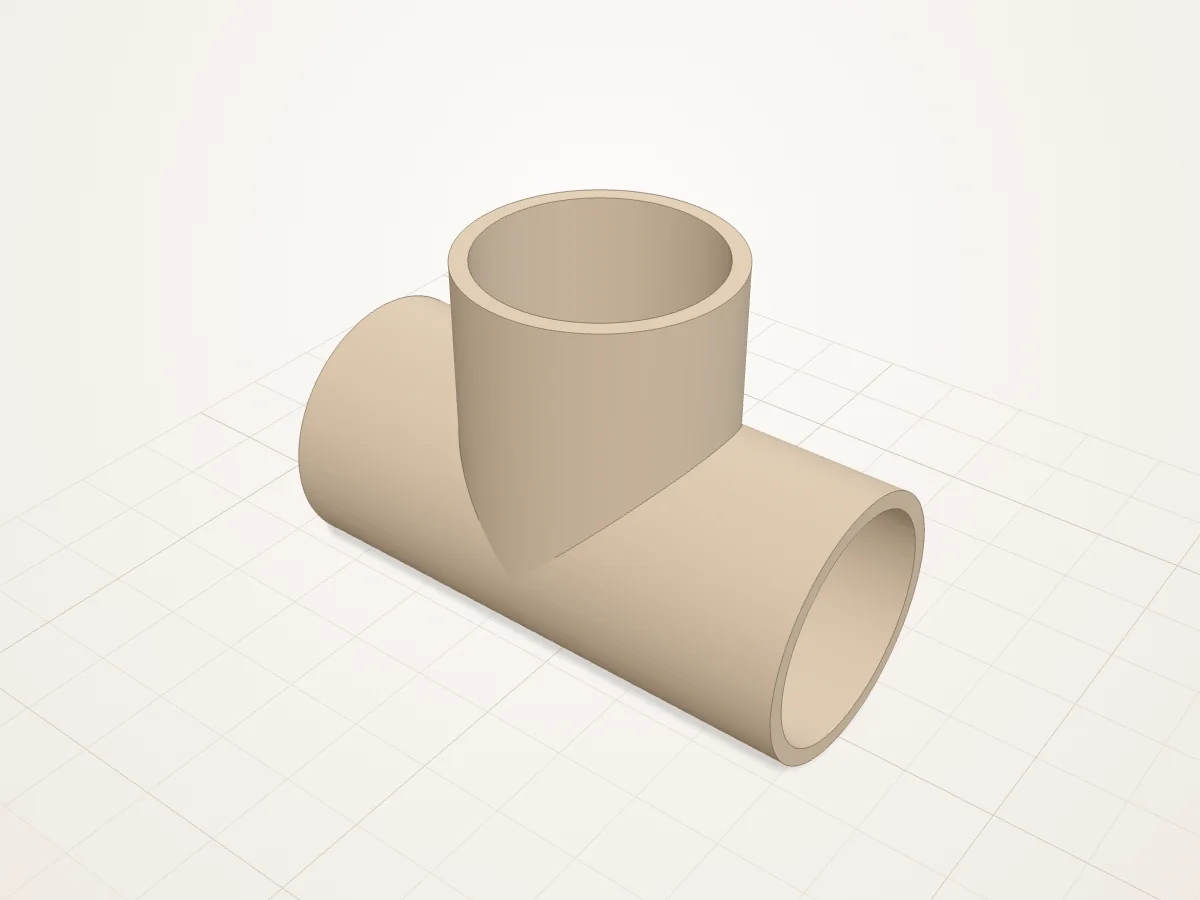
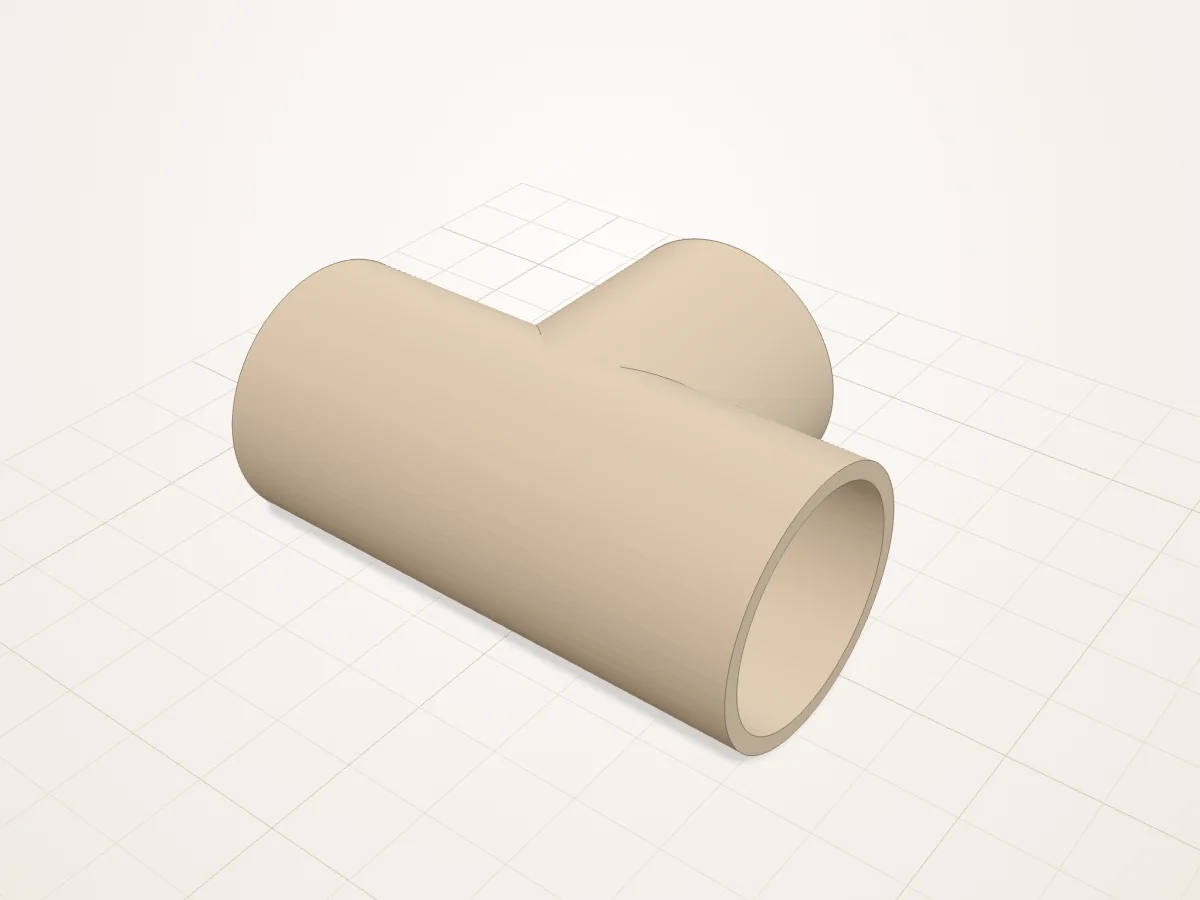
DN50 pipe tee
128 × 60.3 × 94.1 mm with 3.9 mm walls, closed and watertight in the STL: 1,796 triangles.
1,796 faces → 1,796 triangles · 136 KB OBJ → 88 KB STL
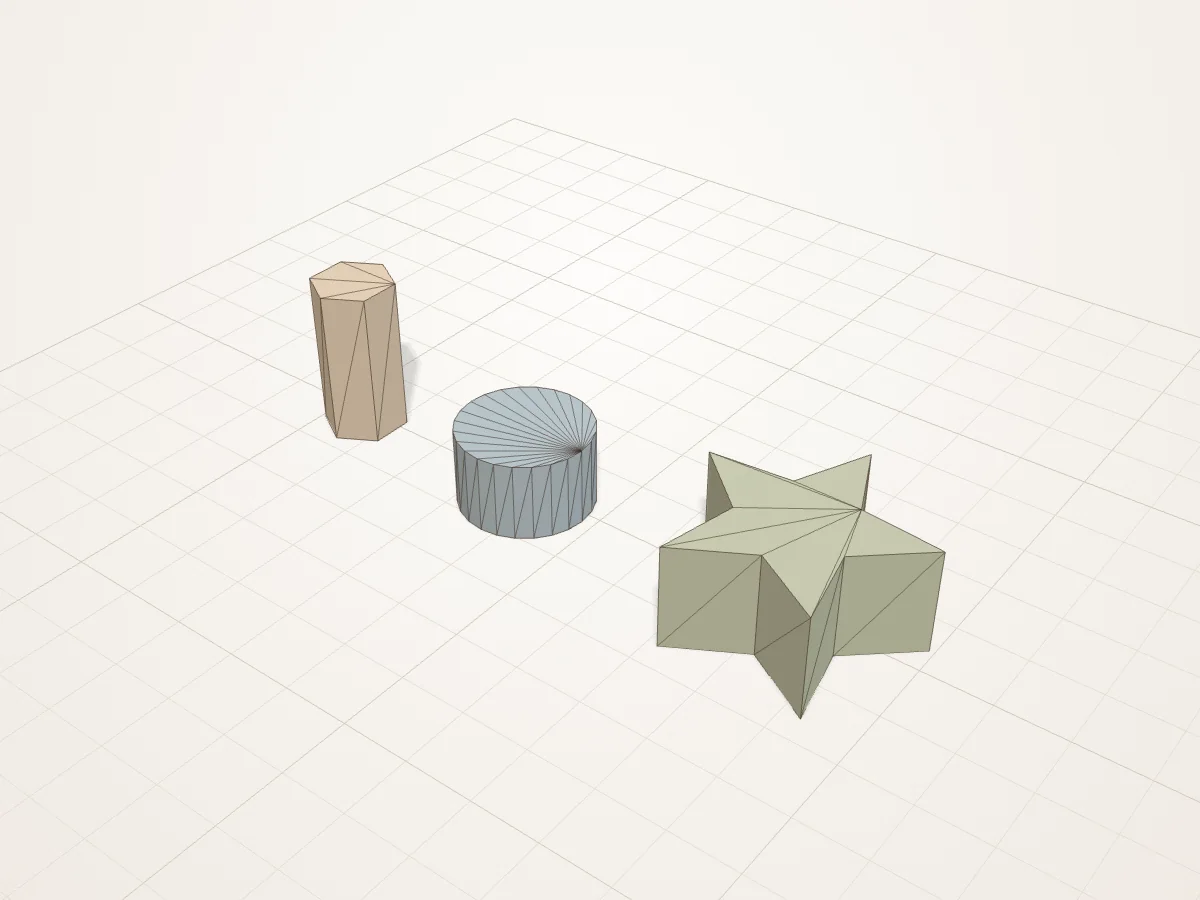
Quads and n-gons
Hardware kit, three objects
40 quads and 6 n-gons, two of them concave stars, split into 148 triangles without a single one outside the outline.
46 faces → 148 triangles · 3 KB OBJ → 7 KB STL
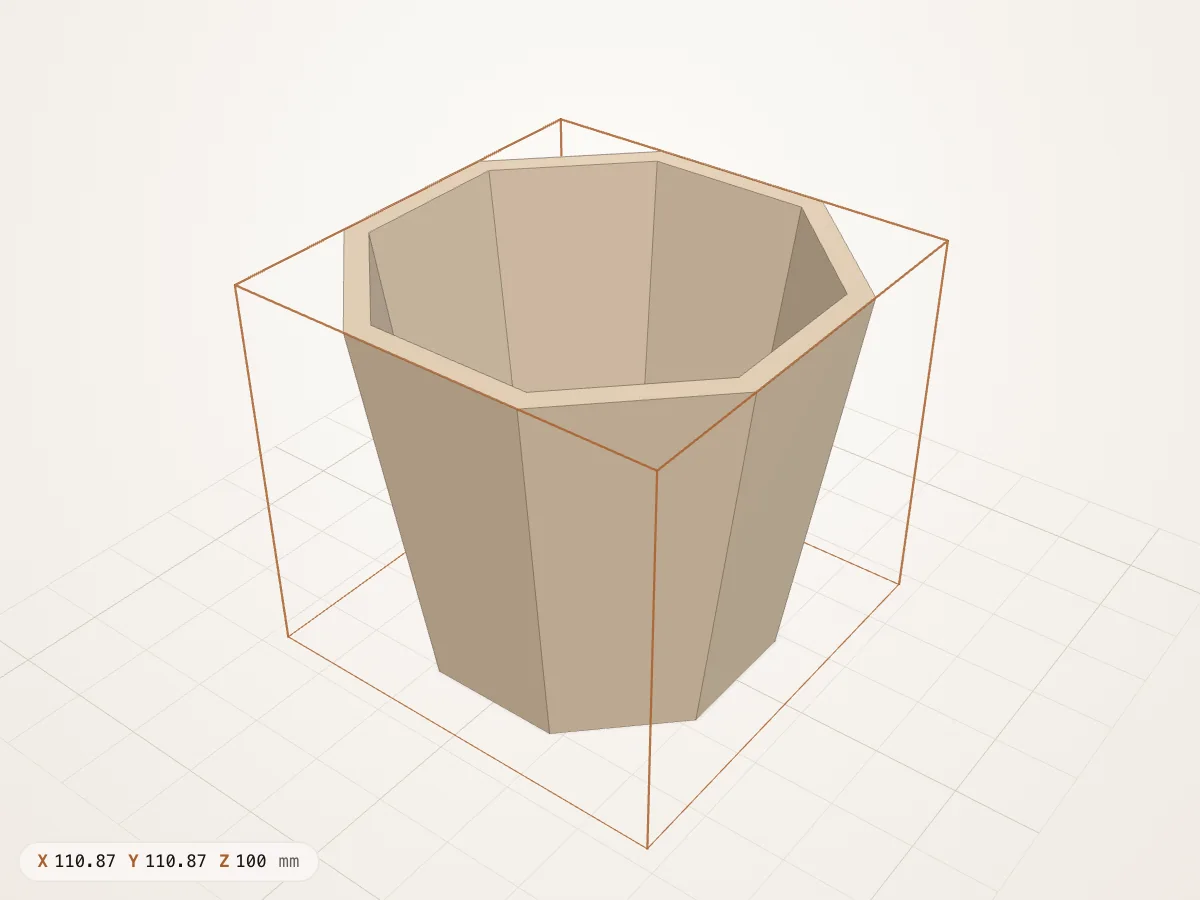
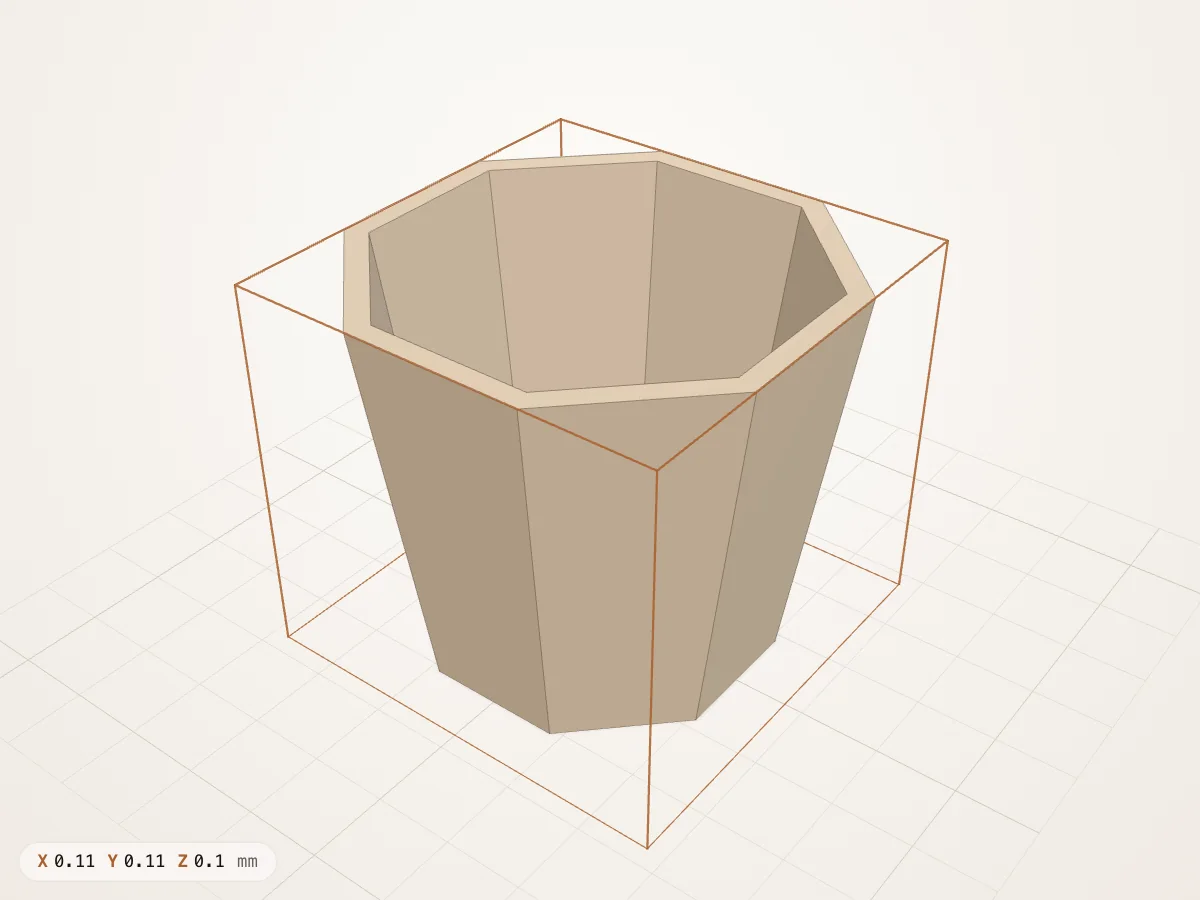
Metres
Low-poly planter from a 3D app
Written in metres, so it reads 0.11 wide. With OBJ units set to m the STL comes out at 110.9 × 110.9 × 100 mm.
26 faces → 60 triangles · 2 KB OBJ → 3 KB STL
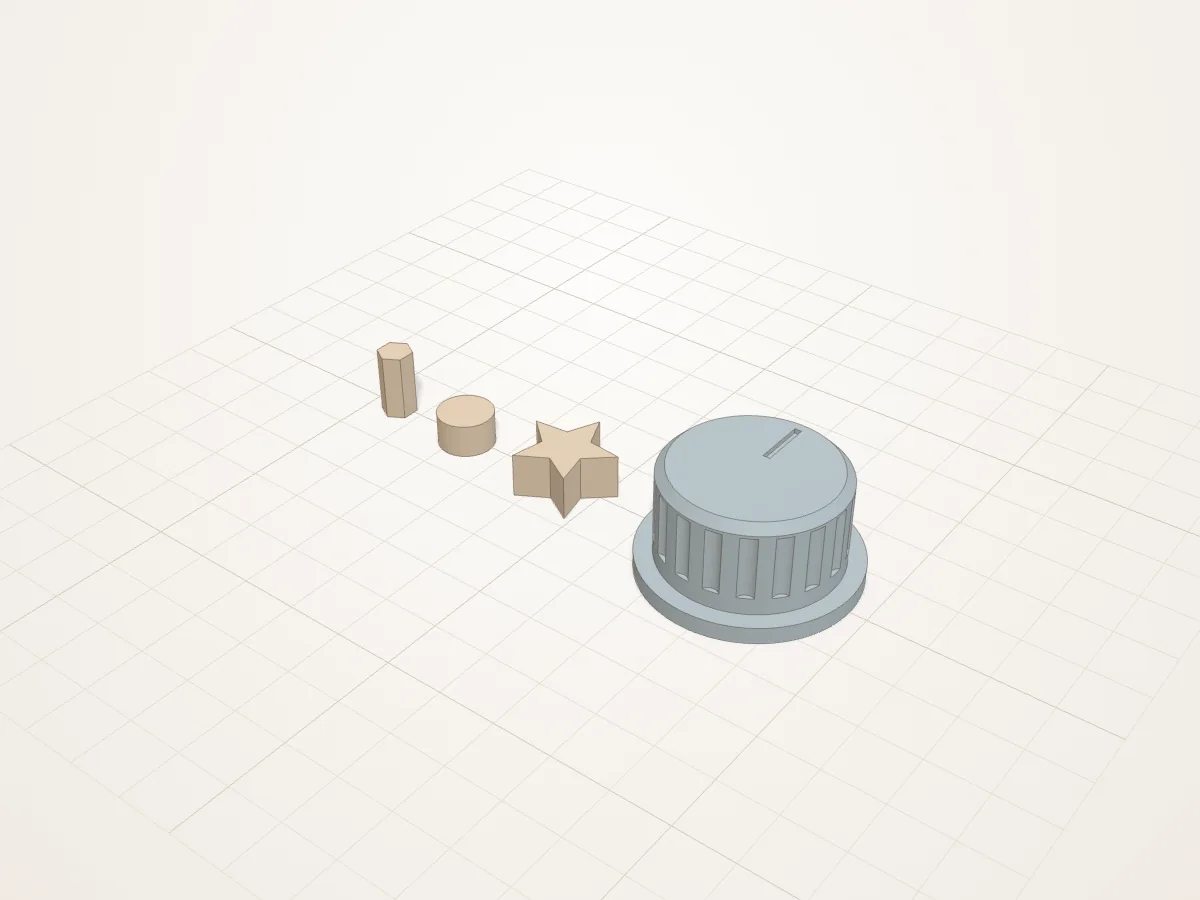
Batch
Two OBJ files, two STL files
Kit and knob dropped together, both Y-up in millimetres, and saved as two STL files in one zip.
2 OBJ → 2 STL · 46 KB zip
What it fixes
Four things that go wrong when you convert OBJ to STL
An OBJ comes from a 3D app, an STL goes to a slicer. These are the gaps between the two, and how this converter closes each one.
- OBJ as writtenSTL, Y-up → Z-up
Control knob: lying on its side as written, standing on its 19 mm height after the turn
OBJ vs STL
OBJ to STL: the two formats side by side
Both describe a surface. OBJ was built for 3D apps and rendering, STL for printers, which is why the conversion has to change a few things.
| OBJ | STL | |
|---|---|---|
| Faces | Triangles, quads and polygons of any size. | Triangles only. |
| Vertices | Listed once and shared by number. | Each triangle repeats its three corners. |
| Colour and texture | Through a .mtl file and images. | None in the standard. |
| Several parts | Objects and groups in one file. | One solid per file in practice. |
| Units | None. | None; millimetres by convention. |
| Up axis | Usually Y. | Z, the build direction. |
Keep the OBJ for editing and rendering; the STL is the copy you print.
How to
How to convert OBJ to STL in 3 steps
No install and no account: the STL file is written in this tab.
STEP 1
Drop the OBJ
Drag up to 20 OBJ files onto the upload box, or open a sample. The .mtl and textures are not needed.
STEP 2
Check orientation and size
Switch the preview between Input and Result. Choose Y-up → Z-up or Keep as is, and the OBJ units the file was made in.
STEP 3
Download STL
Pick Binary or ASCII and press Download STL. Several files or parts come as one zip with an STL for each.
Lying on its back?
The OBJ was already Z-up: choose Keep as is.
Size reads 0.05?
The numbers are metres. Set OBJ units to m.
Binary or ASCII
Binary is smaller and exact; ASCII is text you can read and diff.
Holes in the mesh
Open edges are reported, not filled. Repair AI or game meshes in the slicer.
Specs
OBJ to STL converter specs and limits
What goes in, what comes out, and what this OBJ to STL converter leaves alone.
- Input
- Wavefront OBJ: v and f with v, v/vt, v//vn or v/vt/vn corners, negative indices
- Faces
- Triangles kept; quads and n-gons fanned when convex, ear-clipped when concave
- Parts
- Each o / g becomes a part you can include or leave out
- Batch
- Up to 20 files, 200 MB and 5,000,000 triangles
- Up axis
- Y-up → Z-up (+90° about X) or kept as written
- Units
- OBJ in mm, cm, m or inches; STL written in millimetres
- Output
- Binary STL, or ASCII STL up to 1,000,000 triangles; per file, per part or one file
- Checks
- Watertight, open edges, size, faces and triangles before and after
- Where it runs
- In your browser tab; nothing is uploaded
It does
- Read OBJ without its .mtl file or textures
- Split concave polygons without spilling outside them
- Turn Y-up into Z-up and scale to millimetres
- Write one STL per part in a zip
- Show the exact STL size before you download
It does not
- Keep colours, materials or UV maps; STL has no place for them
- Fill holes, remove intersections or hollow the model
- Reduce triangles; every face is kept
- Read curves, NURBS or lines; only faces have a surface
- Guess the unit of an OBJ; read the size
Where OBJ comes from
OBJ files worth sending to the printer
Most OBJ to STL jobs start in one of these places. Need to check the result first? Open it in the STL viewer.
Blender and Maya models
Y-up and usually in metres: keep Y-up → Z-up on and set OBJ units to m.
AI and photo 3D models
Often open or with loose bits: read the watertight check, and leave helper parts out.
SketchUp exports
Frequently in inches: choose in, and the STL comes out at true size in mm.
Classroom and maker files
Low-poly OBJ downloads full of quads become clean triangles a slicer accepts.
OBJ to STL FAQ
Orientation, units, parts and files.
How do I convert OBJ to STL?
Drop the OBJ on the upload box, check the preview, choose the up axis and units, and press Download STL. The OBJ to STL conversion runs in your browser.
Is this OBJ to STL converter free?
Yes. No account, no watermark and no file count, because the work happens on your own computer.
Are my files uploaded?
No. The OBJ is read and the STL is written inside this tab; nothing is sent to a server.
Why is my model lying on its side in the slicer?
Most 3D apps write Y as up, slicers use Z. Keep Y-up → Z-up selected. If the model now lies on its back, the OBJ was already Z-up: choose Keep as is.
Why is my STL tiny?
OBJ has no unit and Blender works in metres, so a 5 cm figure is stored as 0.05. Set OBJ units to m and the STL comes out at 50 mm.
Does the converter need the .mtl file?
No. Only geometry is converted; the .mtl and texture images are not read.
Does the STL keep colours and textures?
No. STL stores triangles only. For colour prints, keep the OBJ or a 3MF for a slicer that reads colour.
What happens to quads and n-gons?
They are split into triangles: fanned when convex, ear-clipped when concave. The STL never has fewer triangles than the OBJ has faces.
What about several objects in one OBJ?
Each object or group is listed as a part. Save them merged in one STL, one STL per part, or leave some out.
Can I convert OBJ to STL in a batch?
Yes, up to 20 files at once. Per file gives one STL each; One file merges everything; several STL files arrive as one zip.
Binary or ASCII STL?
Binary for printing: smaller, and every coordinate stored exactly. ASCII is readable text and is offered up to 1,000,000 triangles.
Is the STL ready to print?
If the panel says Watertight: Yes, it is. Holes and loose internal faces are reported, not repaired; your slicer or Meshmixer can fix most.
Can I go the other way?
Yes: STL to OBJ welds an STL into a connected OBJ mesh, and STL to 3MF packs parts with their unit for the slicer.
Convert OBJ to STL now
Drop your OBJ files, check the orientation and size, and download STL files your slicer reads at true scale.
Convert OBJ files