Assembly Drawing Generator: Balloons and BOM
Describe a product and AI makes an assembly drawing: parts in their working positions, numbered balloons and a parts list grid, from 60 credits. It is a CAD-style PNG, not an editable CAD file. The free lab below builds a real balloon and BOM sheet from your model.
- Parts in working position
- Balloons you can drag
- BOM as CSV
- Free sheet builder
Drawing style
Technical
Full sheet: views, a section, notes and a title block.
You get a CAD-style PNG made by AI, not an editable CAD file. Trace it to DXF for free afterwards.
Pillow block assembly
Drawn with the free assembly lab below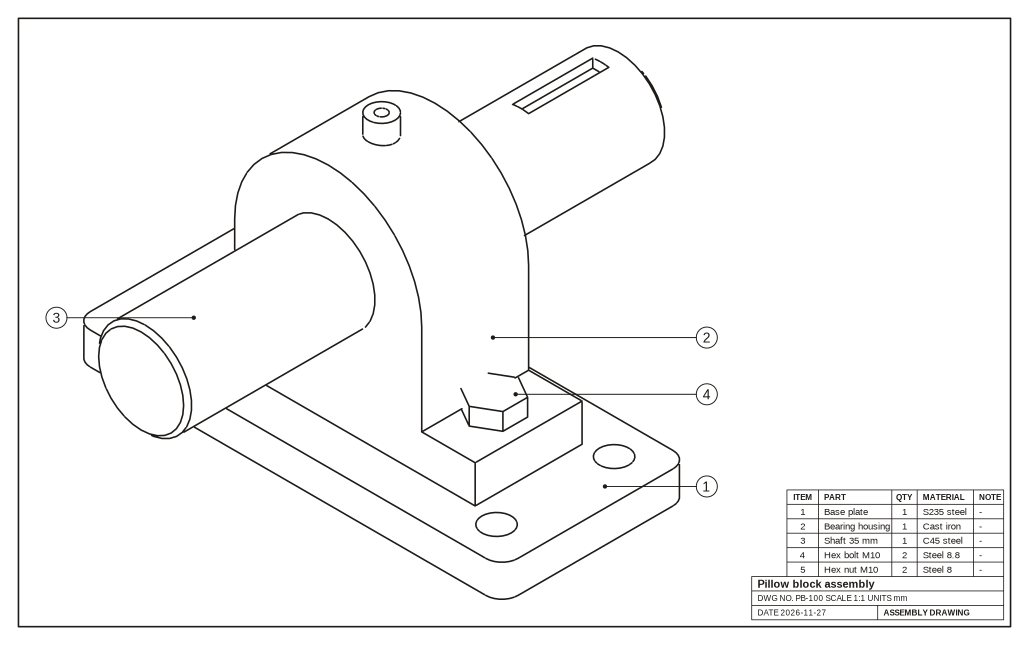
Prompt idea: Assembly drawing of a pillow block bearing unit: base plate, bearing housing, shaft, four hex bolts and nuts, numbered balloons and a parts list with material column, title block. Your result will differ.
Balloon and BOM lab
Build an assembly drawing with balloons and a parts list
Pick a view and the lab balloons every distinct part, counts identical ones and fills the parts list. Drag balloons, click parts to add or remove them, edit the BOM, then download the sheet. Our engine draws it from the model, not AI.
Drag a balloon to move it · click a part to add or remove its balloon
Bill of materials
| Item | Part name | Qty | Material | Note |
|---|
Runs in your browser; nothing is uploaded.
Examples
Assembly drawing examples
Four sheets made by AI and two built in our balloon and BOM lab from real models. AI balloons and table text are layout only; the lab numbers come from the model.
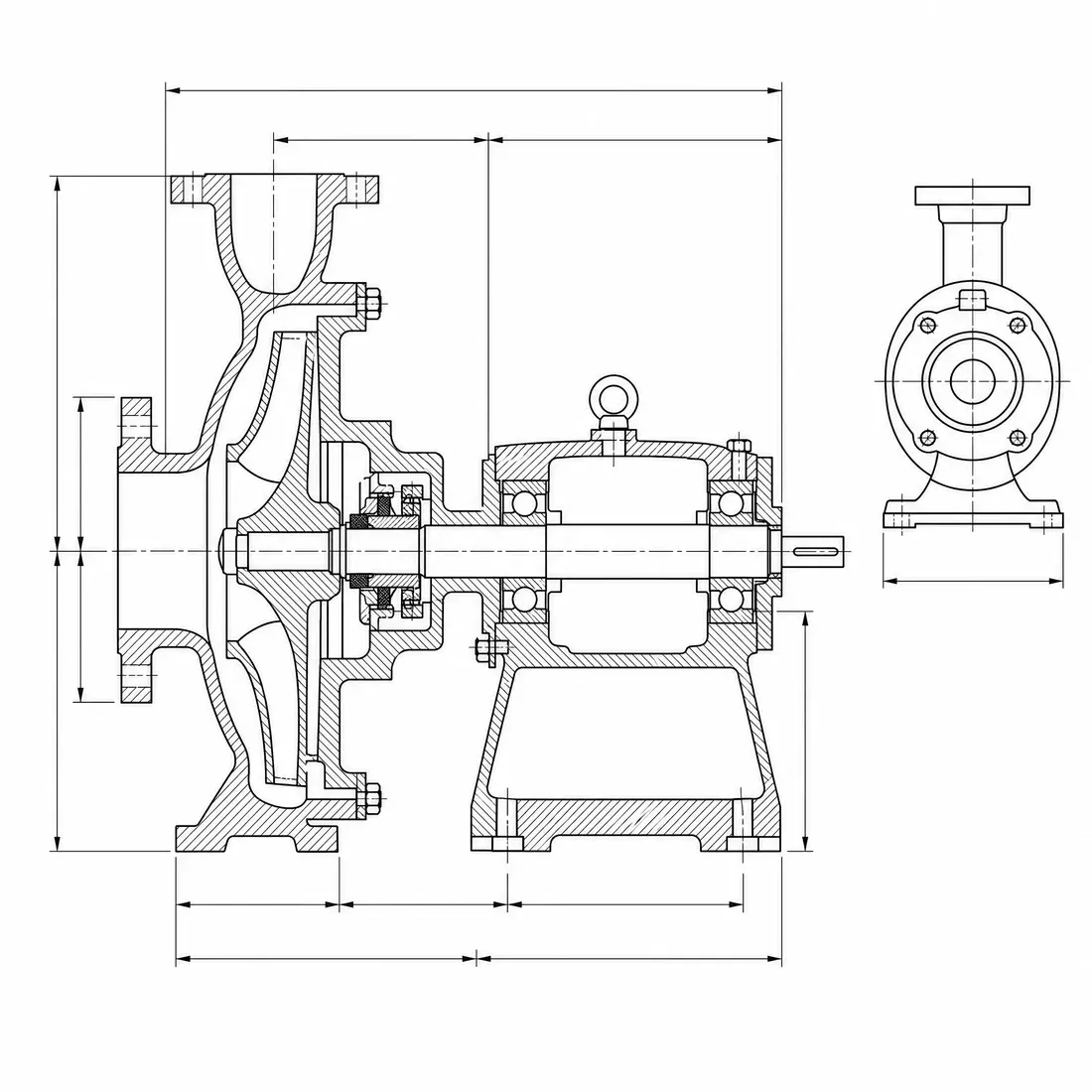
AI-generated example
Pump unit, sectioned
Pump, bearing frame and coupling on one shaft line, cut on the shaft plane, with an end view.
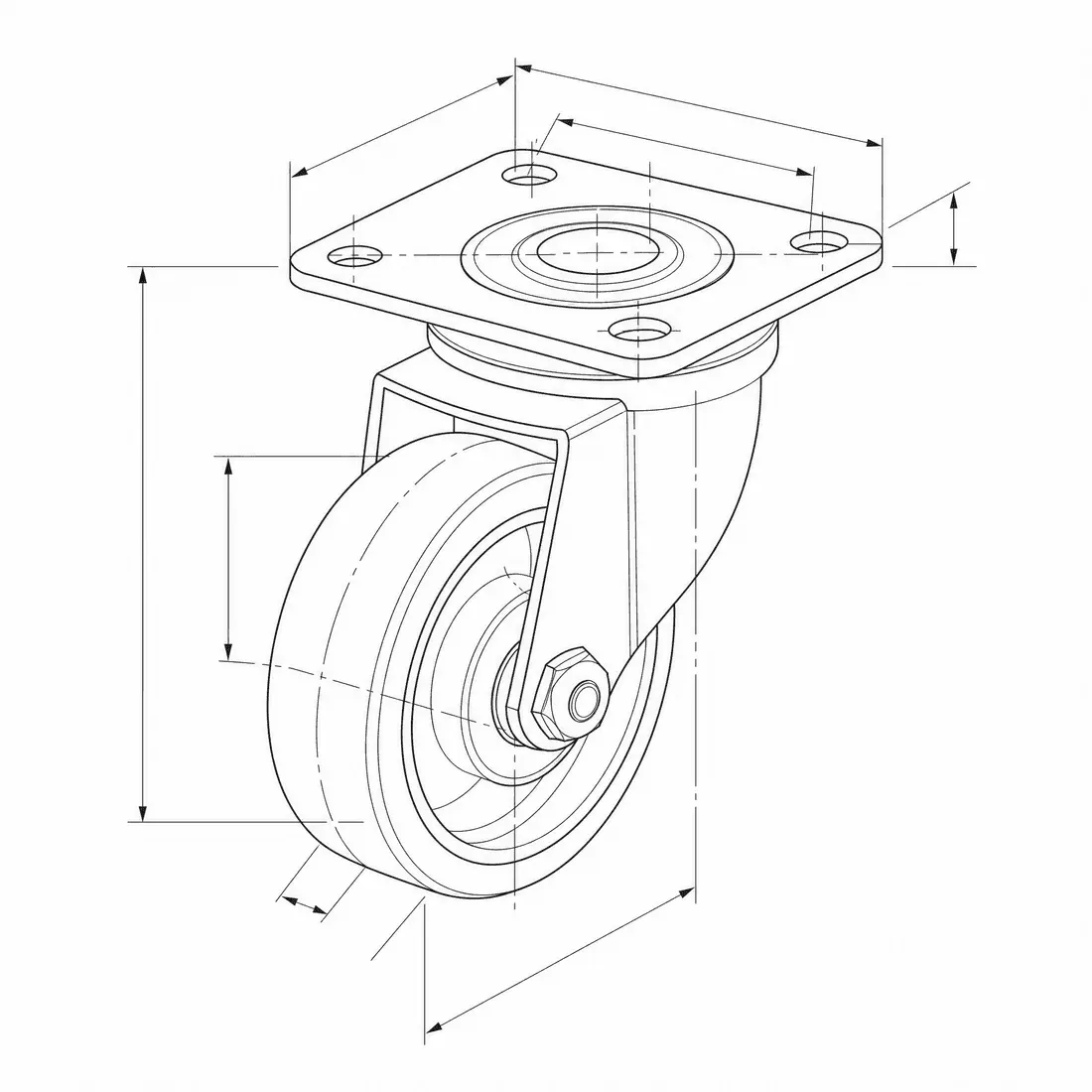
AI-generated example
Swivel caster, assembled
Top plate, fork, wheel and axle in place, with overall and mounting dimensions only.
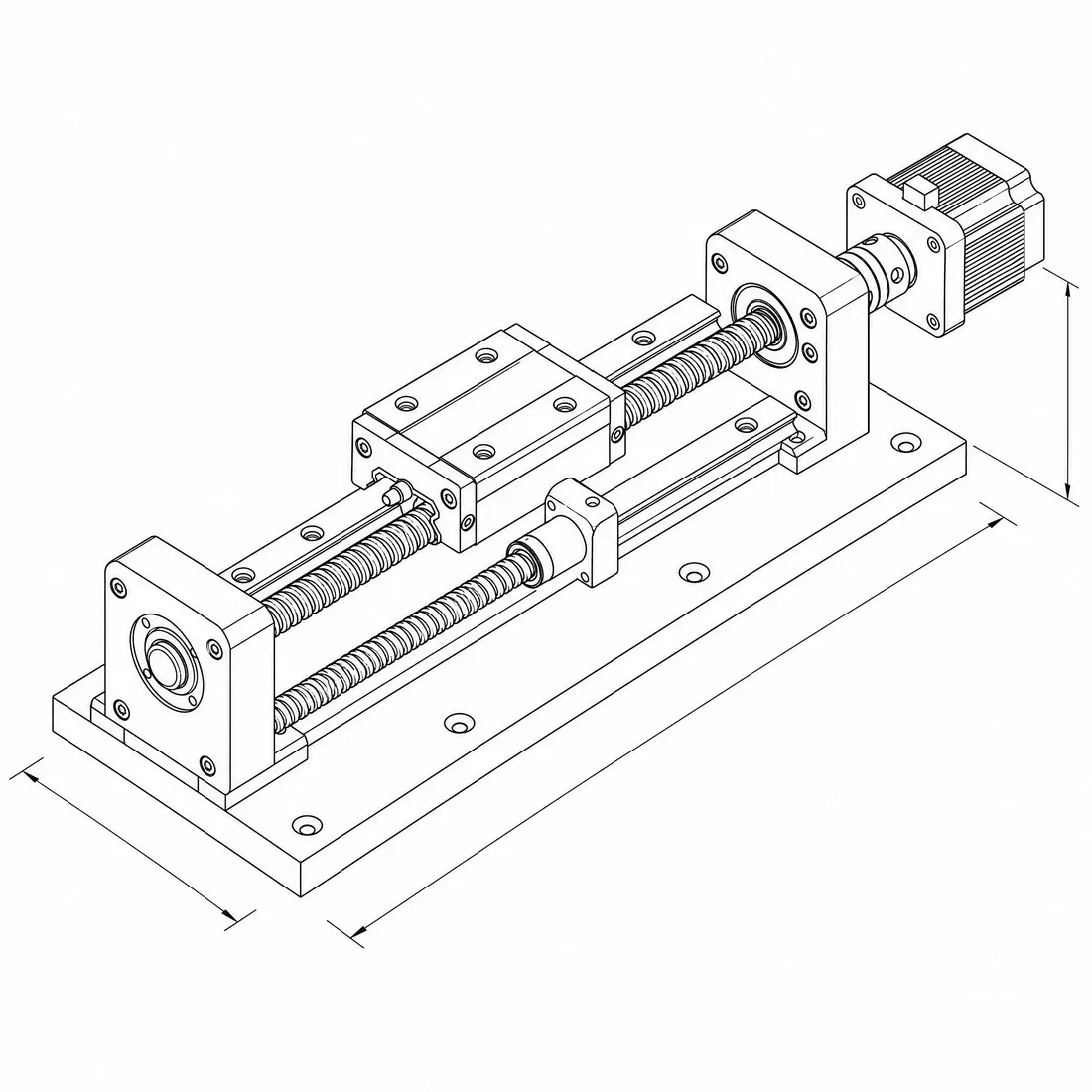
AI-generated example
Linear stage, isometric
Base plate, rails, carriage, ball screw, end supports and motor in one pictorial view.
AI-generated example
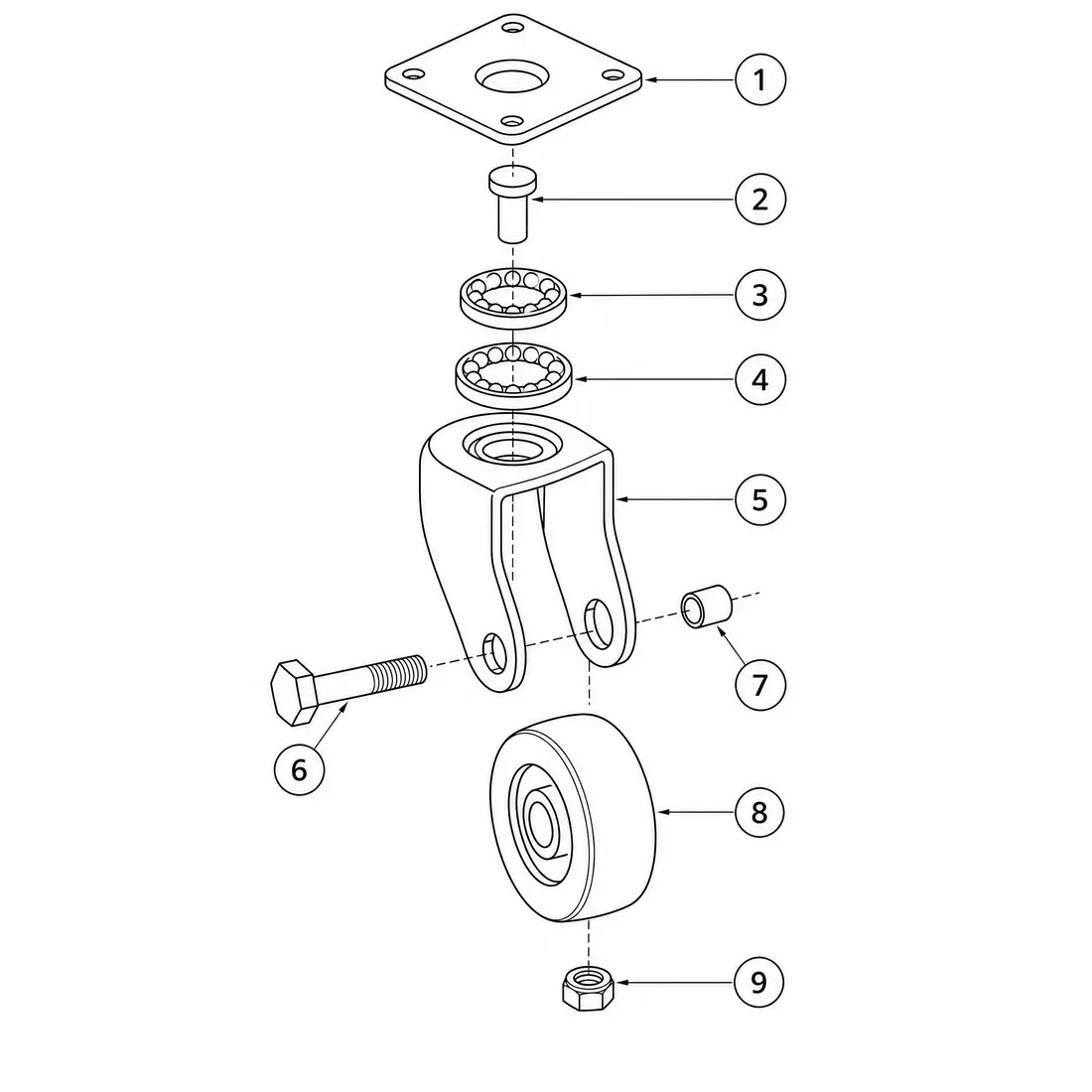
Caster, exploded assembly
The same kind of product pulled apart on its axis, balloons 1 to 9 on short leaders.
Made with the BOM lab
Pillow block sheet
Isometric view, balloons 1 to 5, parts list with quantities above the title block. Drawn by our engine.
Made with the BOM lab
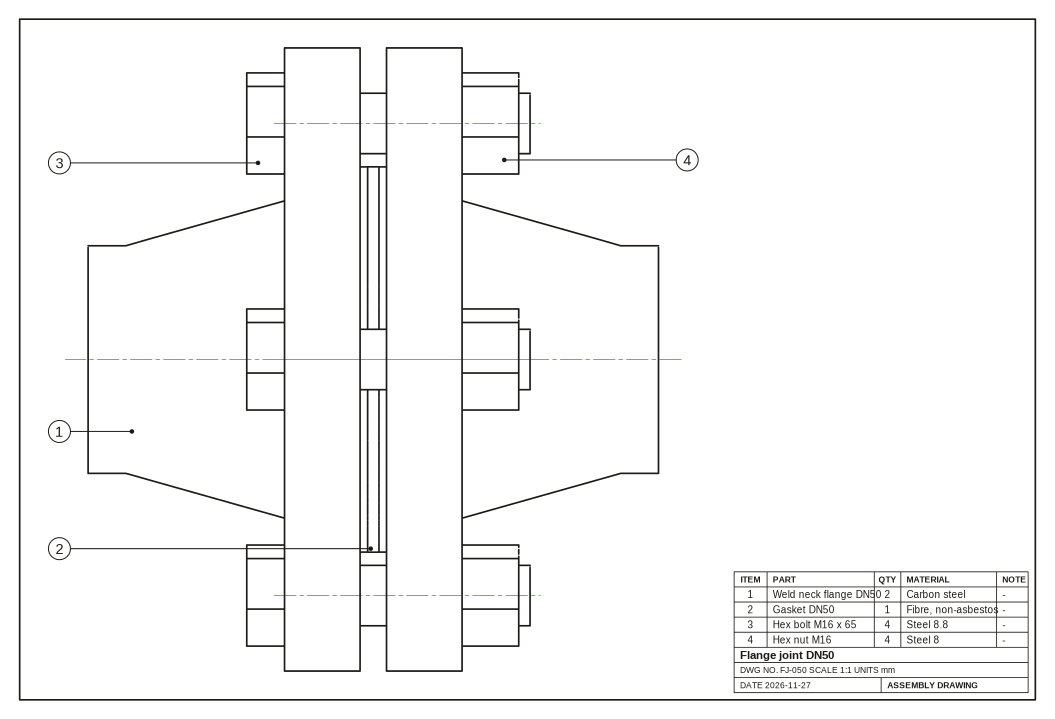
Flange joint sheet
Front view of two flanges, gasket, four bolts and four nuts, with quantity 4 counted from the model.
Prompt builder
Set up an assembly drawing prompt
Pick the presentation, how balloons line up, where the parts list goes and which dimensions to keep. Apply sends one prompt to the assembly drawing generator above.
Generated prompt
TechnicalStart from a template
Learn the rules
What good assembly drawings show
An assembly drawing tells a reader what goes where: every part in its working position, named by a balloon and listed once in a table. Part shapes and sizes belong on detail drawings.
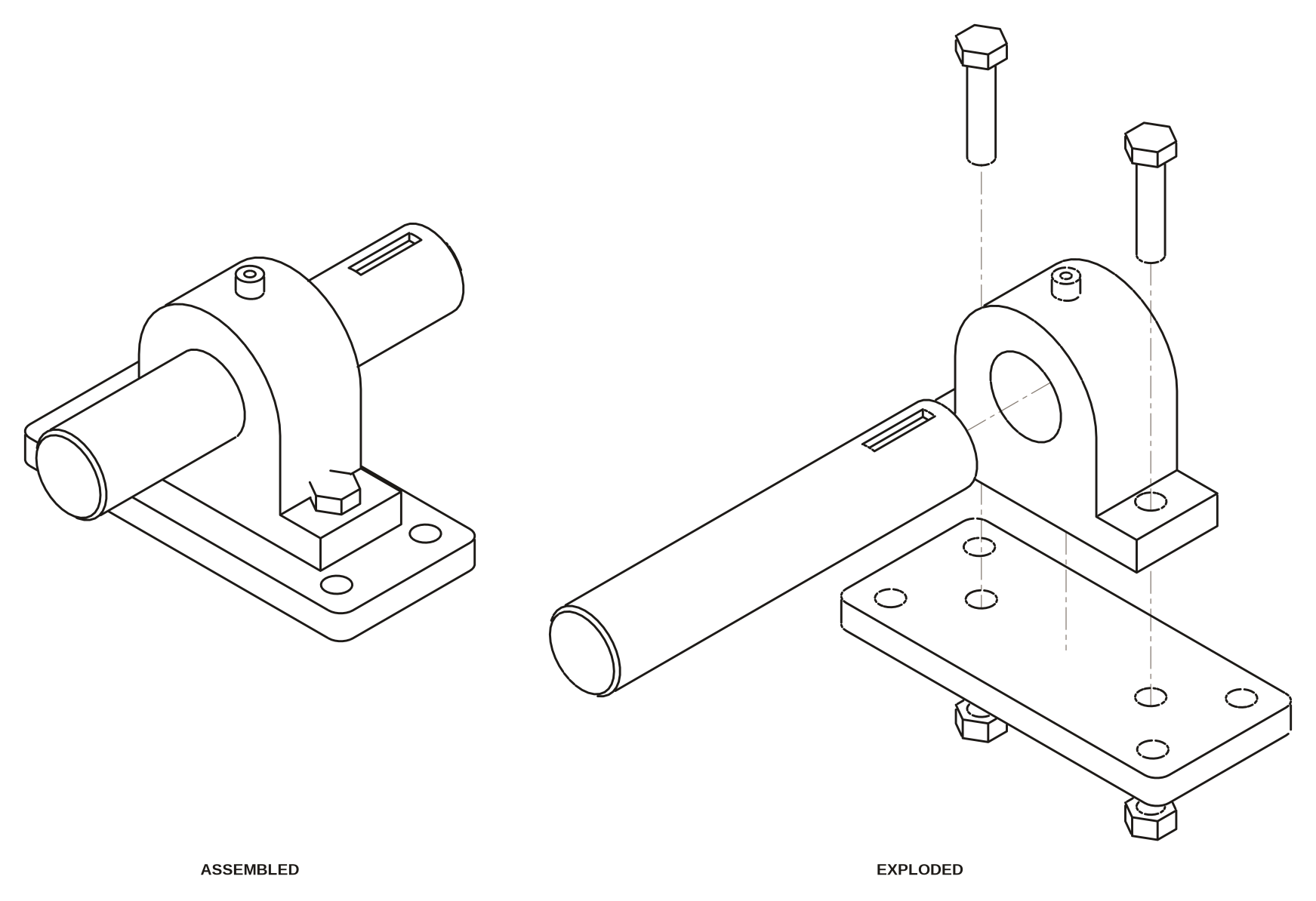
The pillow block assembled, then exploded, drawn by our lab
How to
How to make an assembly drawing in 3 steps
With the AI generator at the top of the page.
STEP 1
Describe the assembly
Type the product and its parts, or switch to the Sketch tab and drop a photo or screenshot (PNG, JPG or WebP up to 10 MB).
STEP 2
Pick the presentation
Keep the Technical style for assembled views, or choose Section, Isometric or Exploded. Ask for balloons in a column and a blank parts list grid.
STEP 3
Generate and check
Press Generate drawing (60 credits at 1K, 80 at 2K). Count balloons against your parts, then Download PNG or Convert to DXF.
Name every part
List the parts once; the AI may merge two similar parts or add one.
Ask for a blank grid
Image models write small text badly; type the BOM yourself.
Keep it assembled
Say "in working position" unless you want an exploded assembly.
Have the model?
Open it in the free lab for exact balloons, quantities and a CSV.
Two tools
AI assembly drawing generator or the free lab
One draws an assembly diagram from words and pictures, the other builds a sheet from a real model.
- AI generator input
- A written description of the assembly, or a sketch, photo or screenshot
- AI generator output
- A CAD-style PNG with views, balloons and a parts list grid, at 1K or 2K
- AI generator cost
- 60 credits at 1K, 80 at 2K; refunded automatically if a run fails
- AI accuracy
- Layout looks right; balloon numbers and table text are not reliable
- Lab input
- STEP up to 100 MB (parts from the product tree) or STL up to 40 MB (each shell a part), up to 300,000 triangles and 60 parts
- Lab views
- Isometric, front, top or right, hidden lines on or off
- Lab parts list
- Item, part name, quantity counted from identical parts, material and note, all editable
- Lab output
- SVG or DXF sheet with border and title block, BOM as CSV; free, in your browser, nothing uploaded (STEP reader 7.3 MB, loads once)
It does
- Draw an assembly drawing from a prompt or a sketch (AI)
- Balloon each distinct part of your own STEP or STL (lab)
- Count identical parts and fill an editable BOM
- Export the sheet as SVG or DXF and the BOM as CSV
- Teach balloons, parts lists and sectioned assemblies
It does not
- Turn the AI PNG into an editable CAD file by itself
- Promise that AI balloon numbers or table text are right
- Read part numbers or materials from a STEP file
- Add dimensions or tolerances to the lab sheet
- Replace your PDM or ERP bill of materials
Assembly drawing FAQ
Assembly basics, the generator and the lab.
What is an assembly drawing?
An assembly drawing shows how the parts of a product fit together in their working positions. It names each part with a balloon, lists the parts in a table and keeps only the dimensions needed to assemble, install or check the unit.
What should assembly drawings include?
Enough views to show every part, a section if parts hide inside, one balloon per distinct part, a parts list with item, name, quantity and material, assembly-level dimensions and a title block.
Is an assembly diagram the same thing?
Mostly. "Assembly diagram" is often used for simpler, step-by-step pictures in manuals, while an assembly drawing is the engineering sheet with views, balloons and a parts list. Both show what goes where.
What is the difference between an assembly drawing and an exploded view?
The assembly drawing keeps the parts in place. An exploded view moves them apart along their assembly axes to show order and direction. Both can carry the same balloons and parts list.
How does the lab count quantities?
Parts with the same name stem (such as Hex bolt M10 (1) and (2)) share one item number and add to its quantity. You can edit every quantity, name, material and note in the BOM table.
Can I move and remove balloons?
Yes. Drag a balloon to move it; its leader follows. Click a part in the drawing to add or remove its balloon, and renumber to put the items back in order.
Does the assembly drawing generator make a CAD file?
The AI generator makes a PNG; Convert to DXF traces its lines for free. The lab exports a real vector SVG or DXF sheet and a CSV of the BOM that opens in Excel or Google Sheets.
Which files can I open in the lab?
STEP or STP assemblies up to 100 MB, read with OpenCascade in a background worker, and STL files up to 40 MB where every separate shell becomes a part. Nothing is uploaded.
Will the AI balloon numbers be correct?
Treat them as layout. The AI may skip numbers, merge two parts or write unreadable text, so check the count and type the parts list yourself.
Can I make an assembly drawing from a photo?
Yes, with the Sketch tab. Name the parts in the notes so each gets a balloon. Parts hidden inside the product are guessed, not seen.
Is it free?
The lab and the trace to DXF are free. AI drawings use credits, 60 at 1K or 80 at 2K, and a failed run is refunded automatically.
Where should the parts list go?
Usually directly above the title block, with item 1 at the bottom so rows can be added upward. A separate list sheet works for large assemblies.
Make your assembly drawing now
Describe the product, pick the presentation and generate. Credits come back if a run fails.
Describe an assembly