CAD for Students: Free Drills and AI Visuals
CAD for students who are just starting and for teachers who need material: a free drill that trains orthographic views on 12 real parts, free graph paper, title blocks and scale tools for class, and an AI that draws CAD-style lesson pictures as PNGs.
- Orthographic view drill
- 3 levels, 12 parts
- Free class tools
- AI lesson visuals
Drawing style
Orthographic
Front, top and side views on shared projection lines.
You get a CAD-style PNG made by AI, not an editable CAD file. Trace it to DXF for free afterwards.
Primitive solids, three views
AI-generated example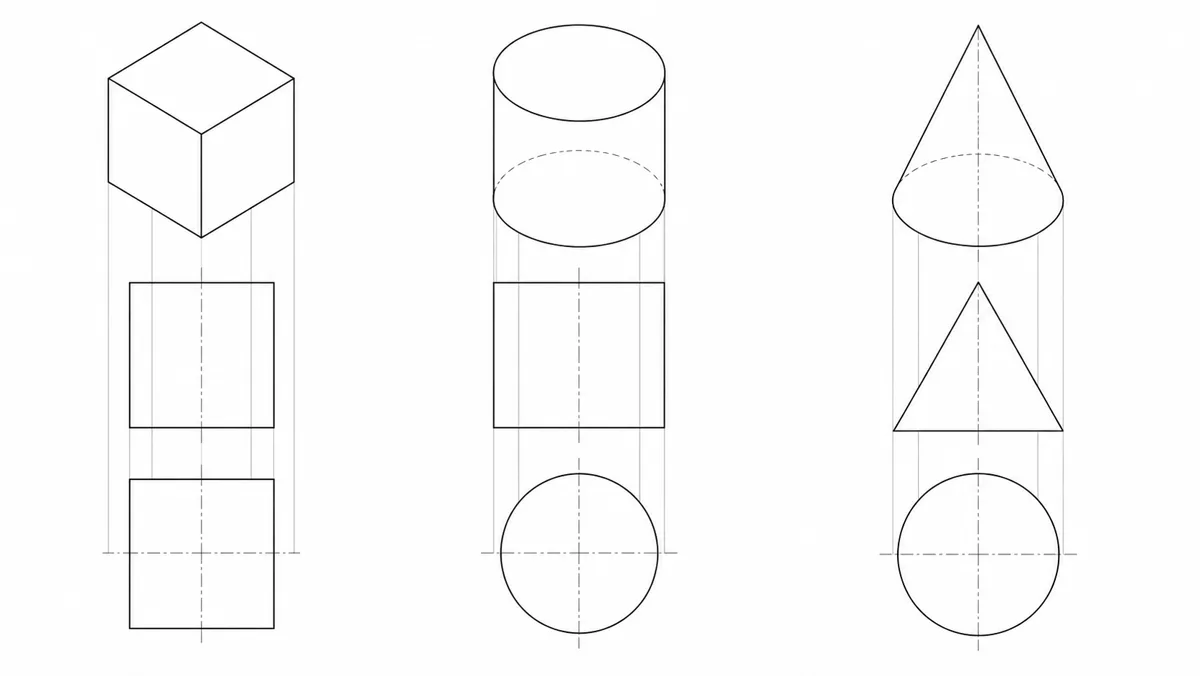
Prompt idea: A cube, a cylinder and a cone side by side, each with its front, top and side views aligned below it, thin projection lines, no dimensions. Your result will differ.
Practice drill
Orthographic drill: CAD drawing for beginners
Look at the part, then pick its view from four drawings, or sketch the view on grid paper and check it. Every line is projected from the real 3D part by our engine, hidden lines and centre lines included, in first or third angle.
Flat faces only: steps, notches and a slot.
Step block
STLWhich drawing is the top view?
Classroom guide
A free CAD for education toolkit
Four short lessons that need no software licence. Each one uses tools that run in the browser on school laptops and Chromebooks.
- 1
Sketch in 3D
Freehand isometric sketches of simple blocks build the spatial sense every later step needs.
- 2
Read the views
Front, top and side views, hidden lines and projection angle: the drill above, then real models.
- 3
Lay out a sheet
Scale, sheet size and a title block turn views into a drawing someone else can read.
- 4
Go digital
Bring a hand sketch into CAD and see what a section or a real file looks like.
AI-generated examples
AI visuals for CAD for students lessons
Teaching pictures made by the AI image models our partner drawcad.org runs, the kind the generator above returns. Check every picture before class: labels and numbers in AI images can be wrong.
Projection
Primitive solids in three views
A cube, a cylinder and a cone with their front, top and side views, for a first projection lesson.
AI-generated example · drawcad.org
Views + iso
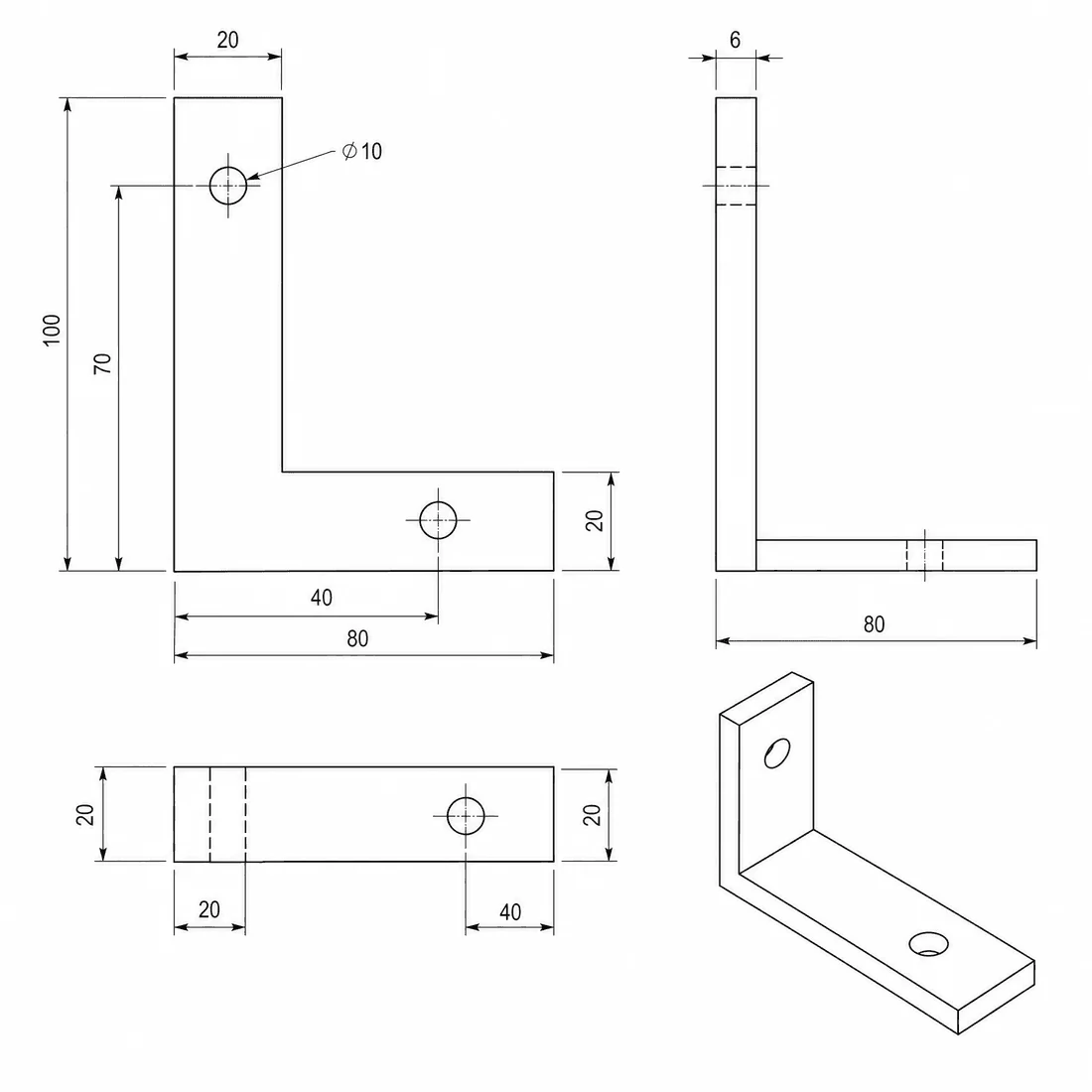
L-bracket worksheet
An L-bracket with three dimensioned views and an isometric view, ready to redraw.
AI-generated example · drawcad.org
From a sketch
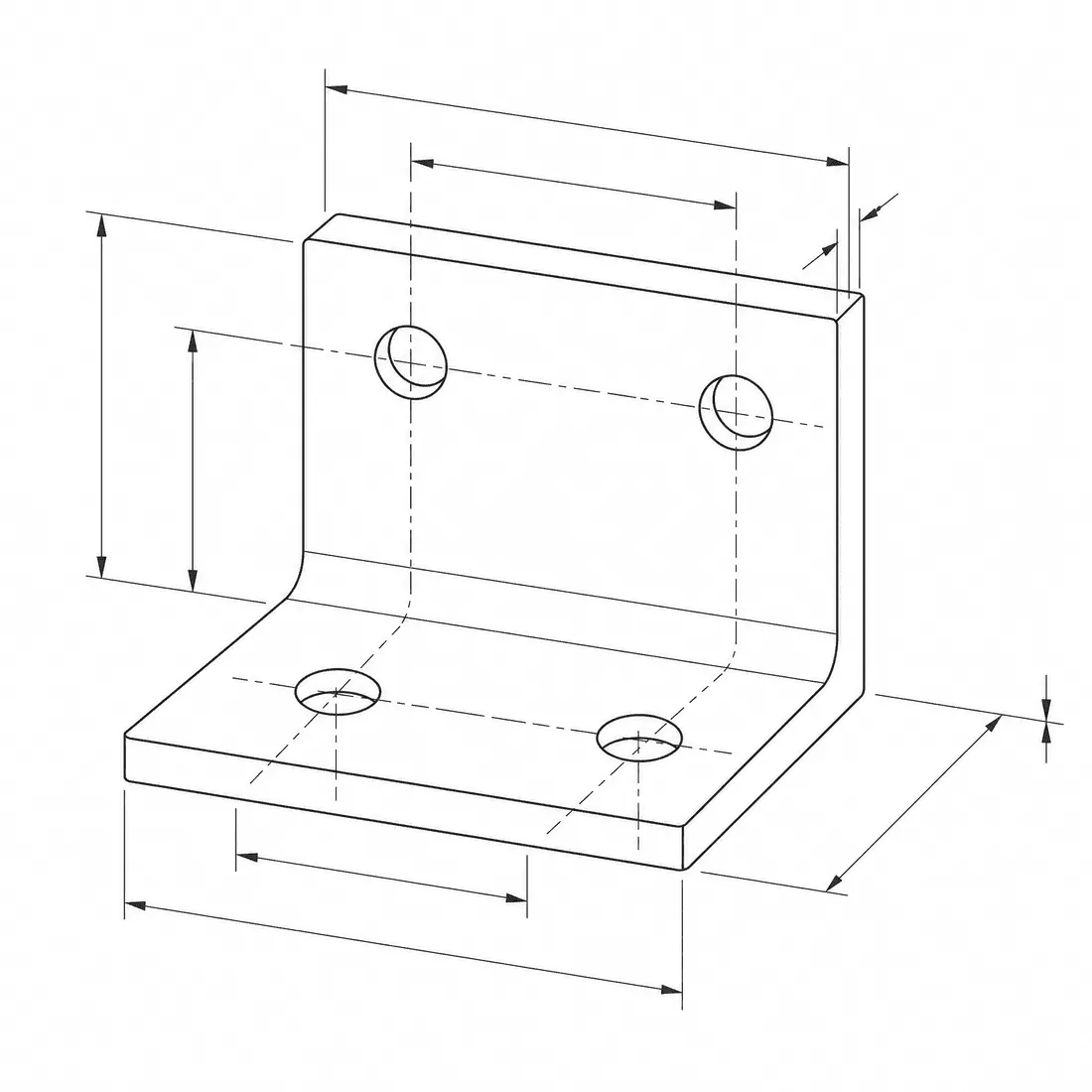
Student sketch, cleaned up
A bracket drawn from a rough student sketch, shown as an isometric technical drawing.
AI-generated example · drawcad.org
Section prep
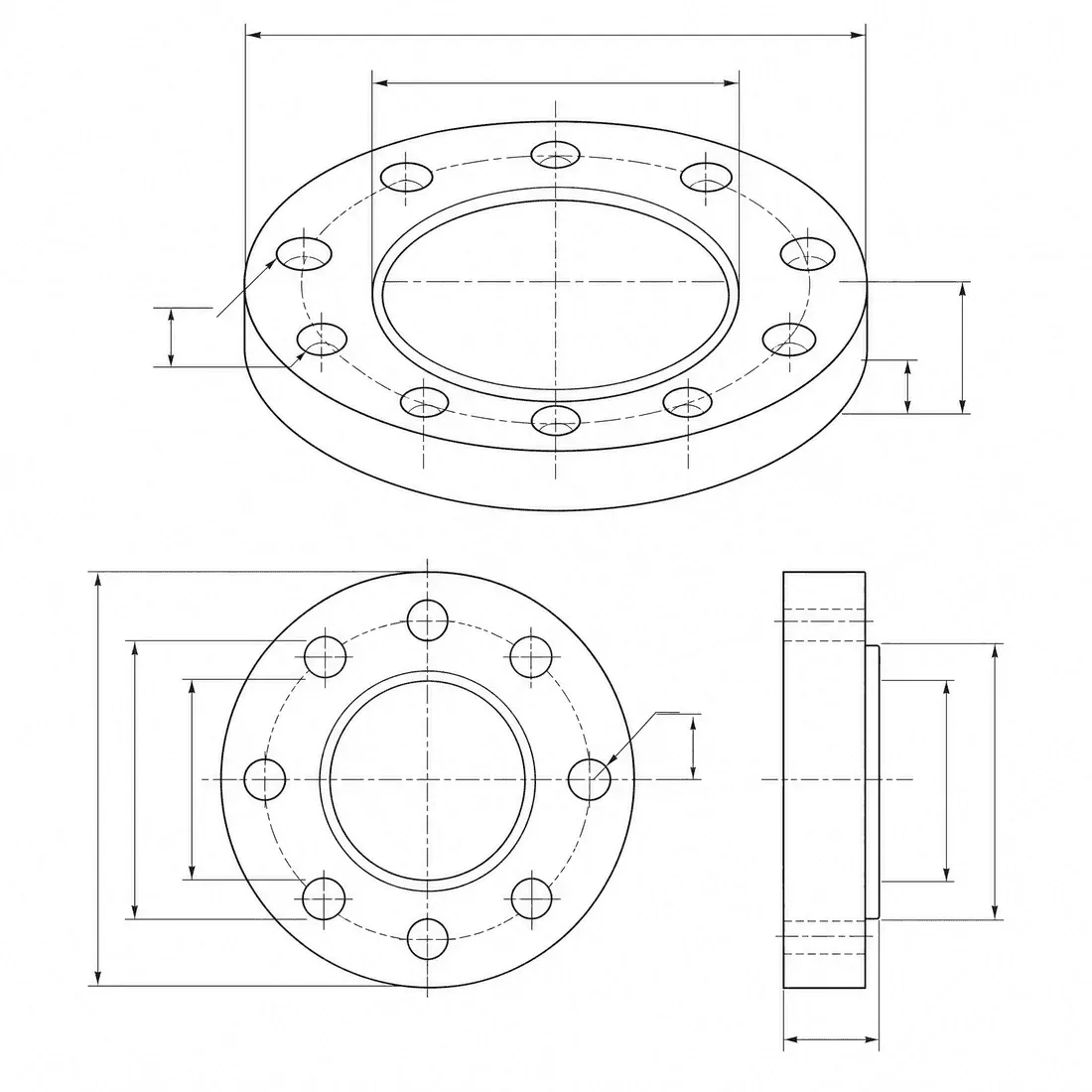
Flange in two views
A bolted flange in an isometric view, a front view and an edge view: good for a section exercise.
AI-generated example · drawcad.org
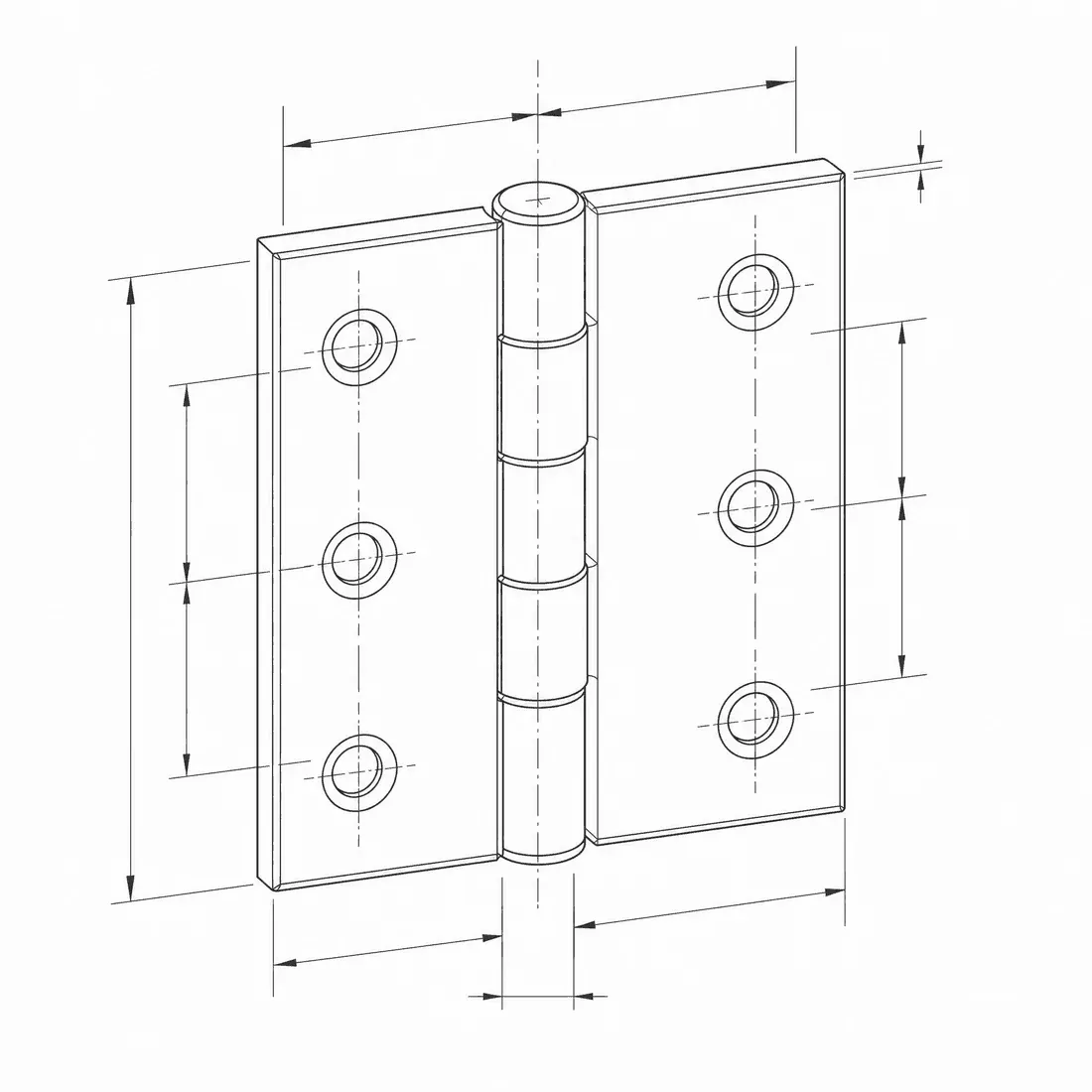
Assembly
Butt hinge, dimensioned
Two leaves, a knuckle and countersunk holes, for a lesson on assemblies.
AI-generated example · drawcad.org
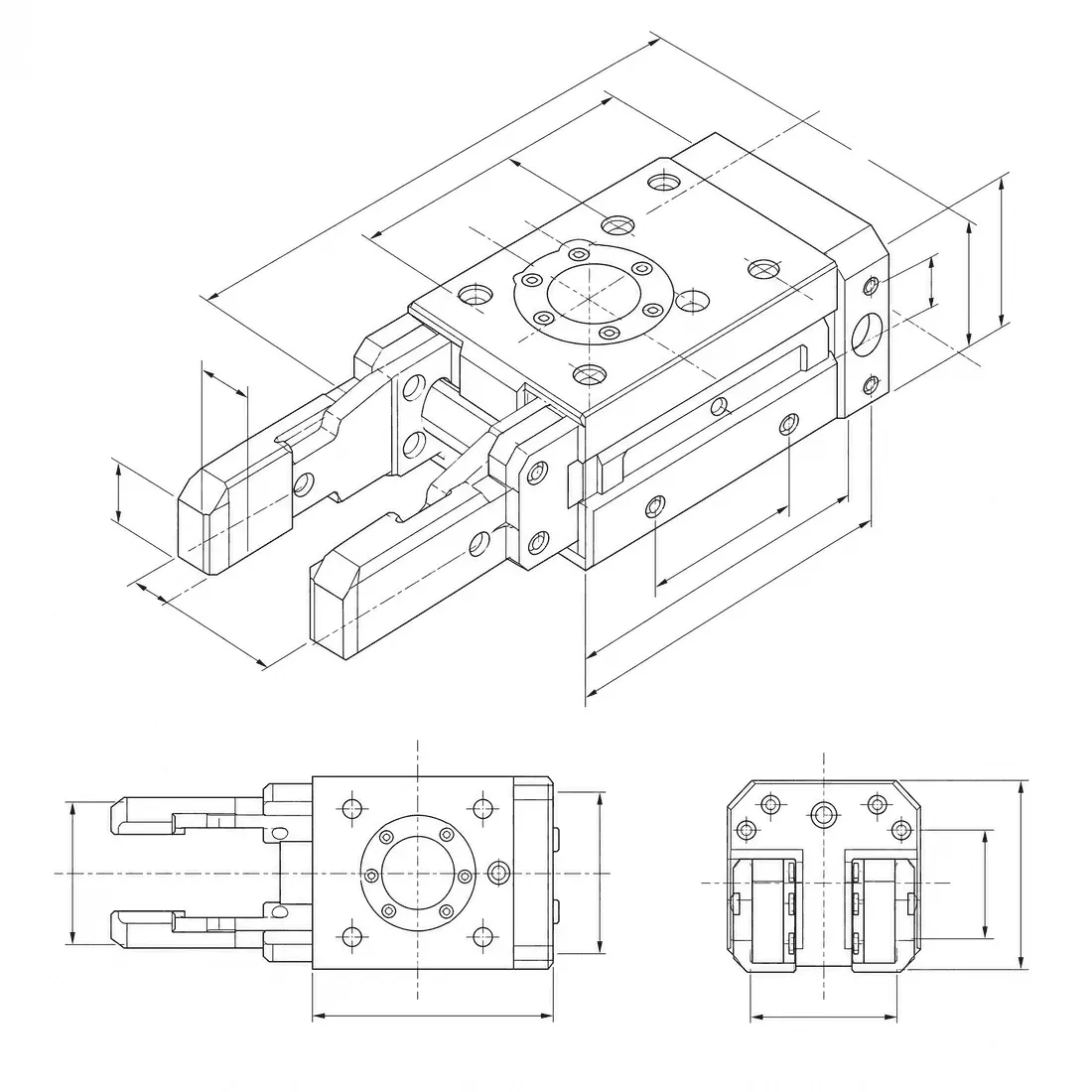
Mechanism
Robot gripper
A two-finger gripper in an isometric and two plain views, for mechanism discussions.
AI-generated example · drawcad.org
Lesson prompt builder
Build a CAD drawing for beginners lesson prompt
Pick the level, the diagram and the labels. The generator above gets one clear prompt for a teaching picture.
Generated prompt
OrthographicStart from a template
What the drill teaches
Four ideas every CAD for students course starts with
The drill levels follow the order most technical drawing courses use. Each figure is one drill part: its isometric picture beside its three views, drawn by our engine.
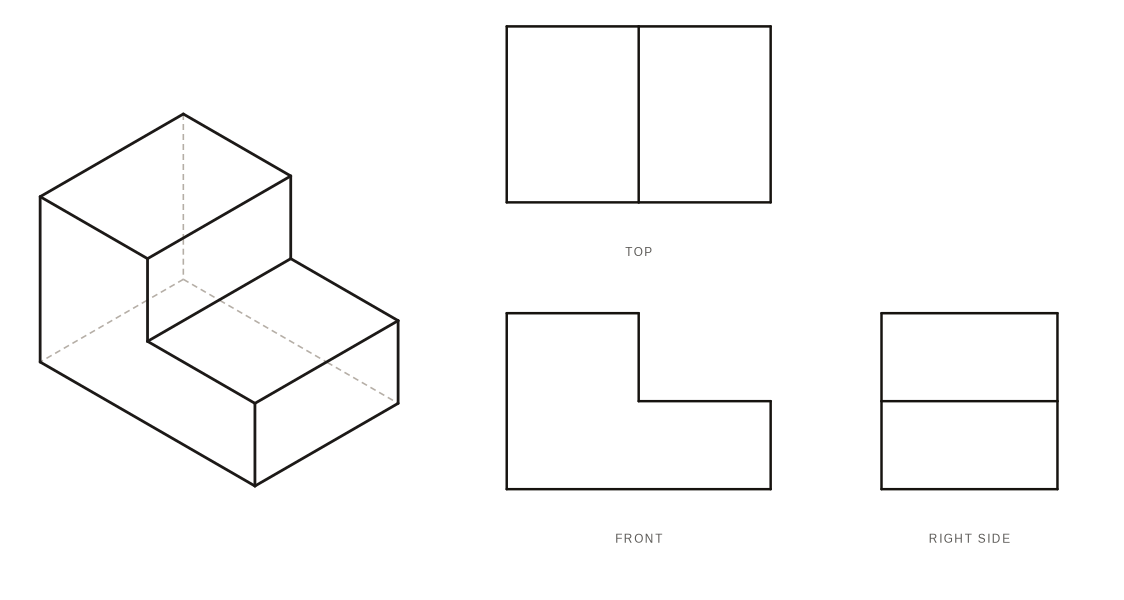
Step block: the step is one line in the top and side views
How to
How to learn CAD for students, step by step
A path that works for a semester of technical drawing or for self-study.
STEP 1
Train your eye first
Do the drill: level 1 until you get every view right, then levels 2 and 3 with hidden lines.
STEP 2
Draw by hand
Sketch views on isometric and square grid paper. Speed comes before neatness.
STEP 3
Move to CAD
Model the drill parts in a free CAD program, then check your views in the projection lab.
Front first
Choose the front view that shows the most shape.
Dashed is hidden
Every edge you cannot see becomes a dashed line.
Circles need centres
Draw centre lines through every hole.
Know your angle
Check the projection symbol before reading a drawing.
Specs
What this CAD for education page gives you
Free practice and class tools, plus paid AI pictures for teachers.
- Drill parts
- 12 parts in 3 levels: steps and notches, slopes and grooves, holes and hidden lines
- Drill modes
- Pick the view from four engine-drawn choices, or sketch it on a 5 mm grid and check it
- Views
- Front, top, side, rear and bottom, with hidden lines and centre lines; first or third angle answer sheet
- Downloads
- Every drill part as an STL to model, print or open in the projection lab
- Cost
- Drill and class tools free, no account; AI pictures from 60 credits
- AI output
- CAD-style PNG teaching pictures; not editable CAD files
It does
- Train reading and drawing orthographic views with instant feedback
- Show why a wrong choice is wrong (mirrored, wrong view, missing hidden lines)
- Give teachers free sheets, grids and scale tools for class
- Make AI pictures for slides and worksheets
It does not
- Teach a CAD program such as Fusion, Onshape or FreeCAD
- Grade freehand curves: the sketch check reads straight grid lines
- Store student results: progress stays in the browser tab
- Promise that AI labels and numbers are right
CAD for students FAQ
Questions from students, parents and teachers.
What is the best CAD for students?
For mechanical parts, free education licences of Fusion, Onshape and Solid Edge, or FreeCAD for any use. Before any of them, learn to read views: the drill on this page trains exactly that, in the browser.
How do beginners learn CAD drawing?
Start with views: front, top and side of simple blocks, then hidden lines, then holes with centre lines. Sketch on grid paper, check yourself, and only then model in a CAD program. The three drill levels follow that order.
Is the drill free?
Yes. The drill, the parts, the graph paper, the title block sheets and the scale calculator are free and need no account. Only the AI picture generator uses credits.
How does the drill check my sketch?
Each grid square is 5 mm. Your lines are split into grid steps and compared with the engine view: right lines, lines with the wrong type (solid for hidden) and extra lines are counted. Circles are left out of sketch tasks.
What do the wrong answers show?
Real mistakes students make: another view of the same part, the view mirrored, the view with its hidden lines missing or drawn solid. After each answer the page says which mistake it was.
First angle or third angle for students?
Learn the one your course uses: third angle in the US (ASME), first angle in most of Europe and Asia (ISO). The views are the same; only their places change. The answer sheet switches between both.
Can teachers use the drill in class?
Yes. Put it on a projector and vote on the four choices, or let students work on laptops or Chromebooks. Download the part STLs for 3D printing so students can hold the part.
Can I use the AI pictures in course materials?
Yes, within the terms of your plan. Check each picture first: AI can misdraw a hidden line or invent a number. Add correct labels in your slide or worksheet program.
Does the AI teach CAD software?
No. It draws CAD-style pictures for discussion and worksheets. Learning a CAD program still takes the program and practice; the drill and the free tools prepare the thinking.
What does the AI education generator cost?
From 60 credits per picture at 1K, shown before each run and refunded if a run fails.
Are the drill views correct?
They are projected from the 3D parts by the same engine as our projection lab: visible edges solid, hidden edges dashed, centre lines through holes. Tests check every part and every answer set.
Start learning CAD for students today
Pick level 1 in the drill, or describe a lesson picture for the AI.
Make a lesson picture