AI Text to CAD Generator: Prompt to Technical Drawing
Describe a part in plain words and CAD Converter draws it as a CAD-style technical drawing with views, dimension lines and a title block, from 60 credits. Text to CAD here gives you a PNG made by AI, not an editable CAD file; trace it to DXF for free in one click.
- 9 drawing styles
- mm or inches
- PNG at 1K or 2K
- Free trace to DXF
Drawing style
Technical
Full sheet: views, a section, notes and a title block.
You get a CAD-style PNG made by AI, not an editable CAD file. Trace it to DXF for free afterwards.
Stepped drive shaft
AI-generated example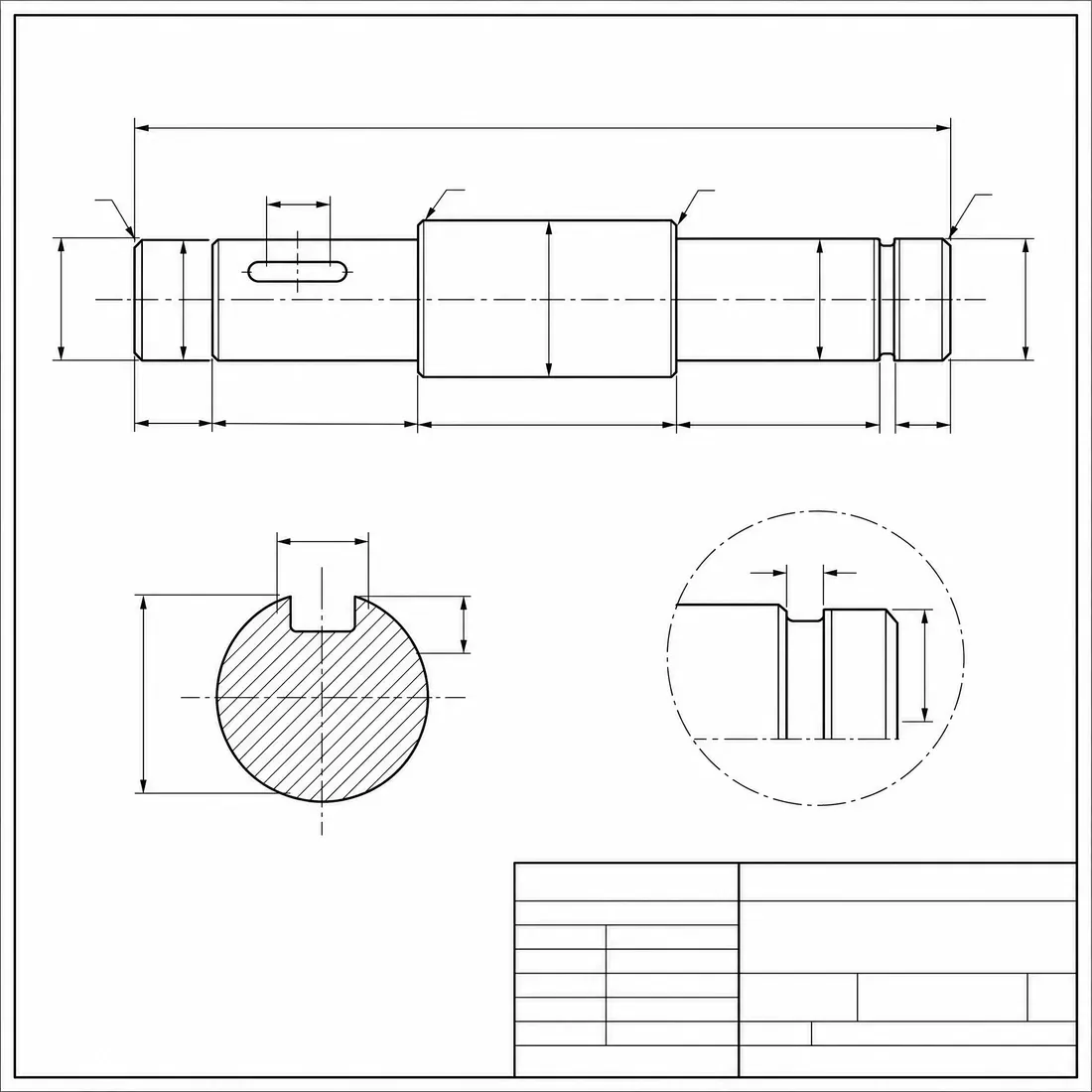
Prompt idea: Stepped drive shaft, Ø40 mm, 220 mm long, one keyway, a retaining-ring groove and chamfered ends; section through the keyway. Your result will differ.
Examples
Text to CAD examples drawn by AI
AI-generated examples of the sheets a short text to CAD prompt can lead to. They show the kind of layout to ask for; every result is new, so yours will differ.
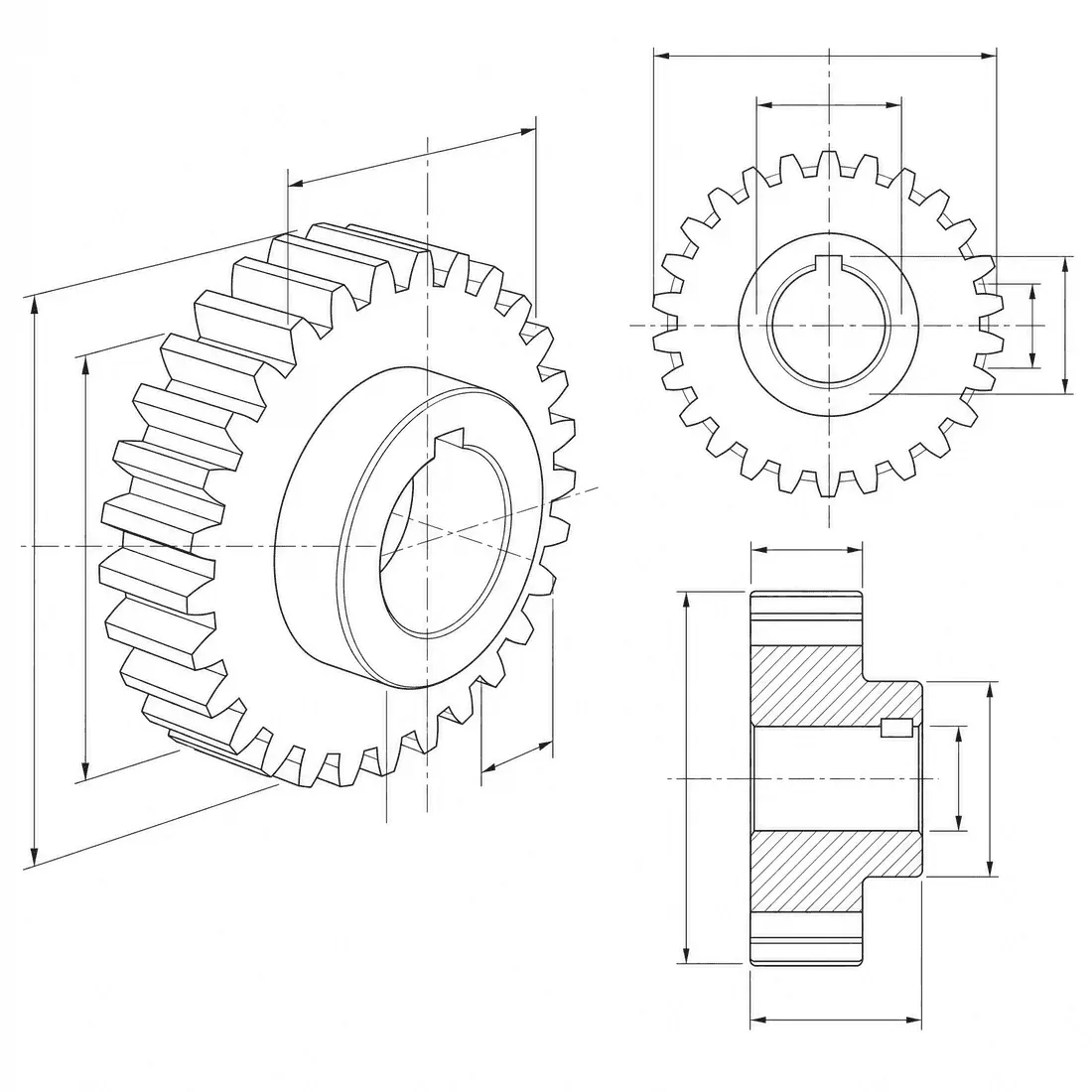
AI-generated example
Spur gear with keyway
A gear with a bore, keyway and hub, drawn as an isometric plus a front view and a hatched section.
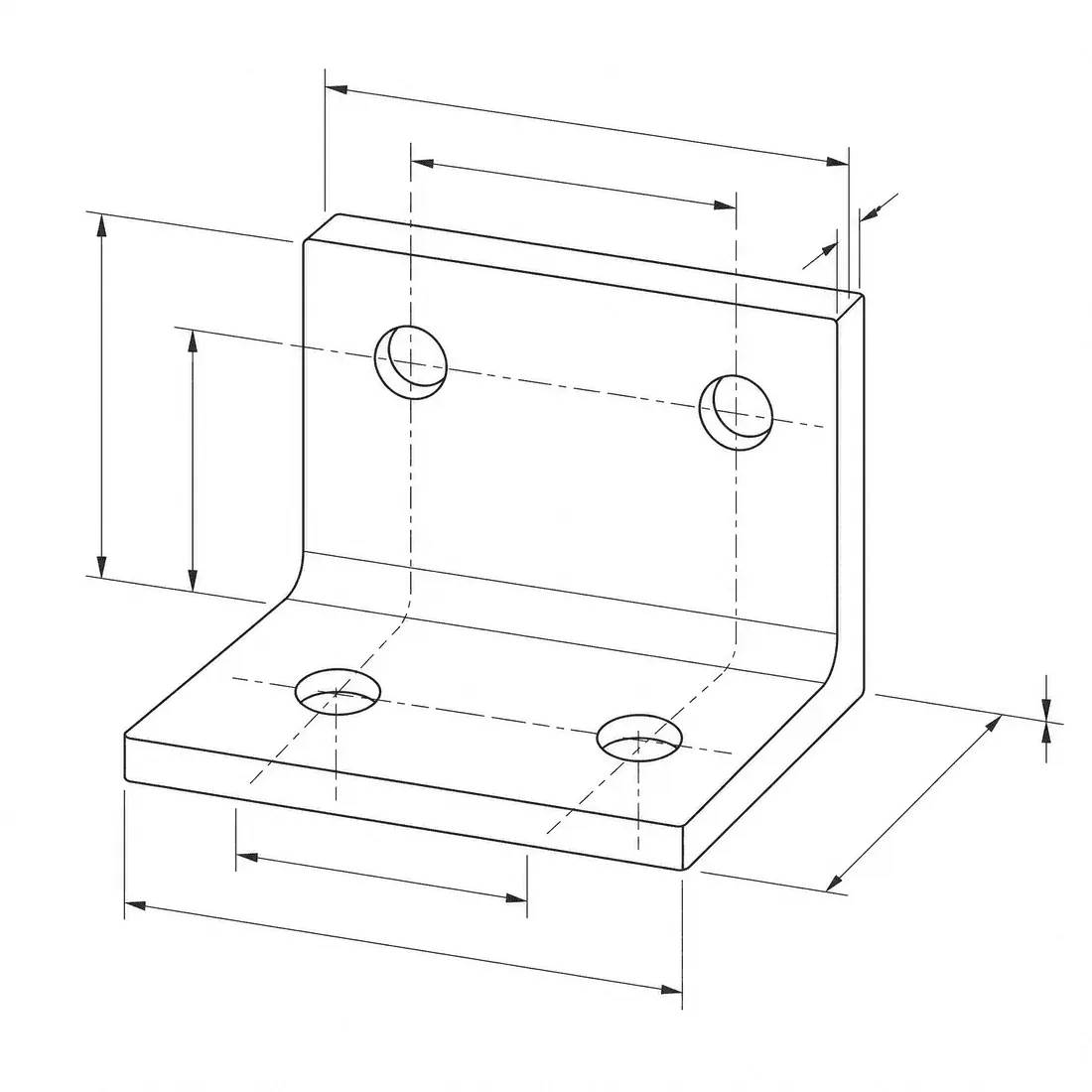
AI-generated example
Angle bracket
An L-shaped bracket with four holes, dimensioned along the isometric axes.
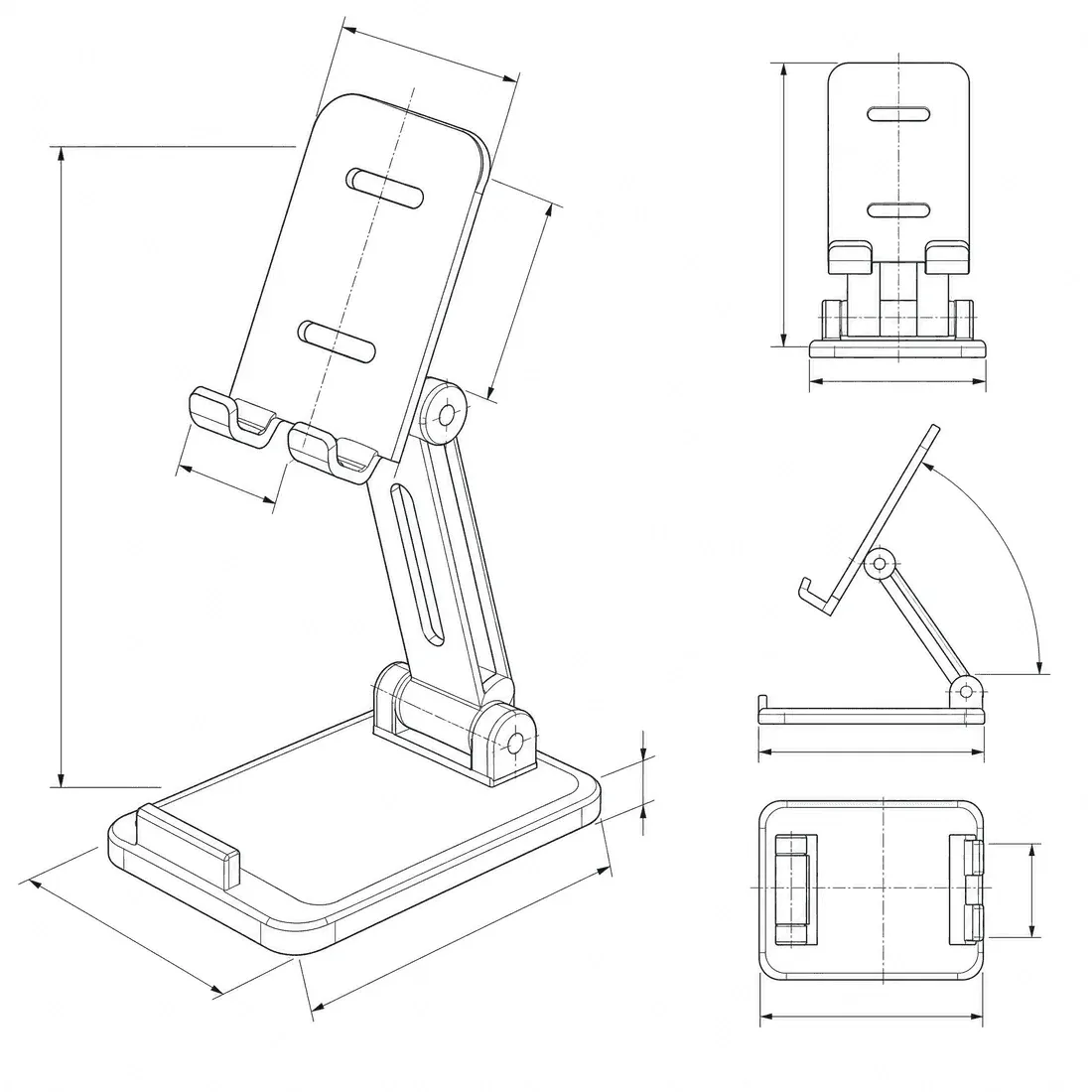
AI-generated example
Folding phone stand
A hinged desk stand shown open in isometric, with front, side and top views and its fold angle.
AI-generated example
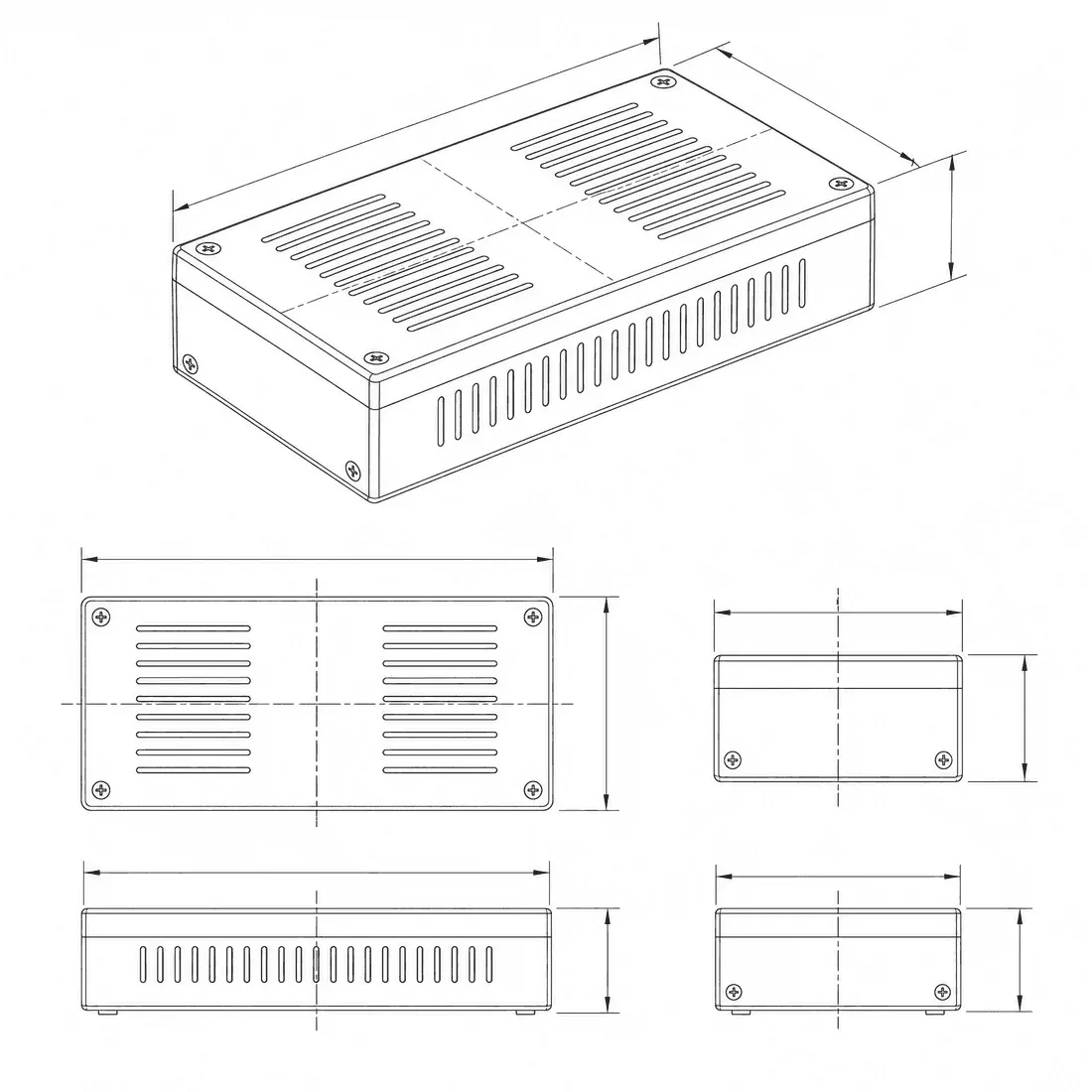
Electronics enclosure
A vented case: one pictorial view above three aligned orthographic views.
AI-generated example
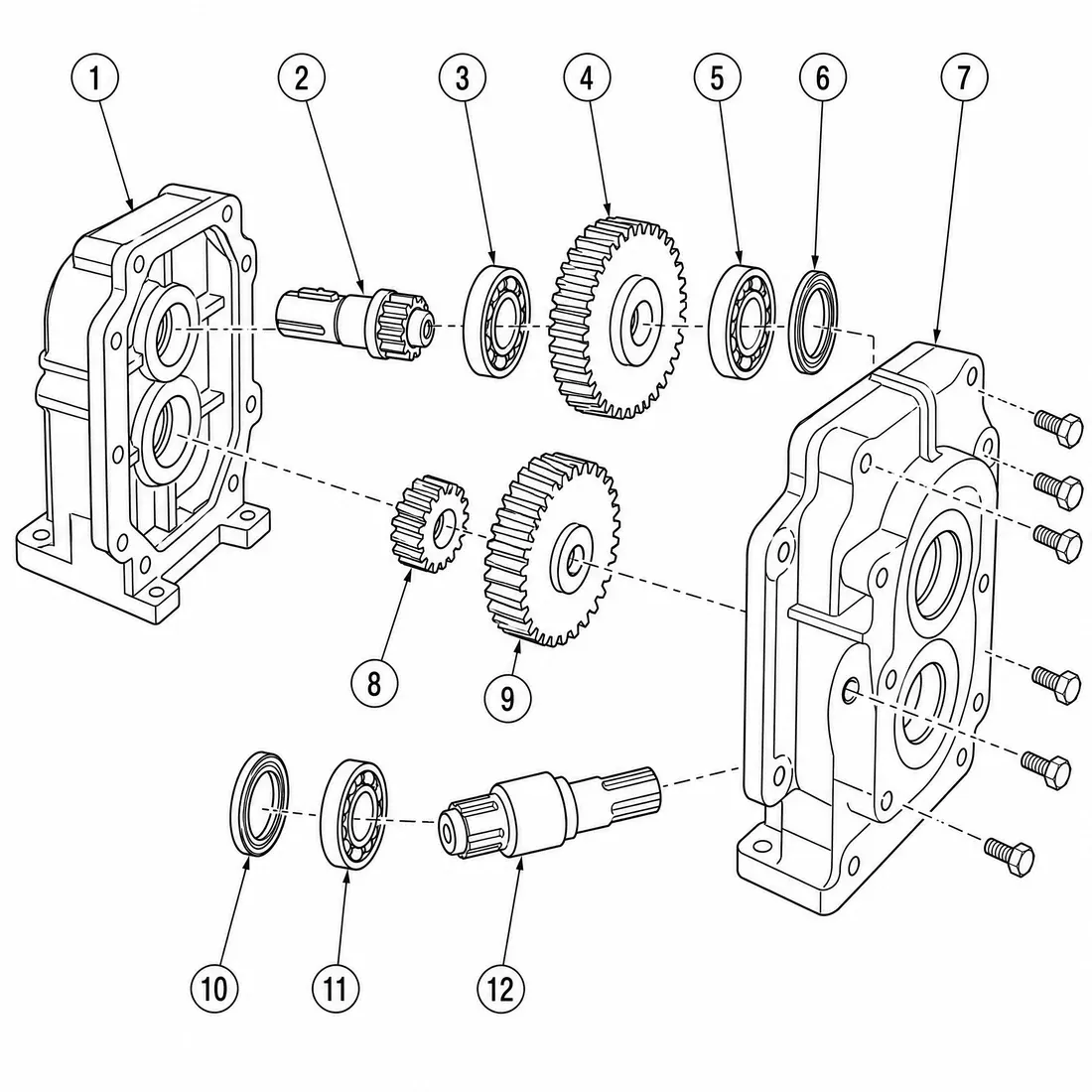
Gear reducer, exploded
Housing halves, shafts, gears and bearings pulled apart on their axes with balloons 1 to 12.
AI-generated example
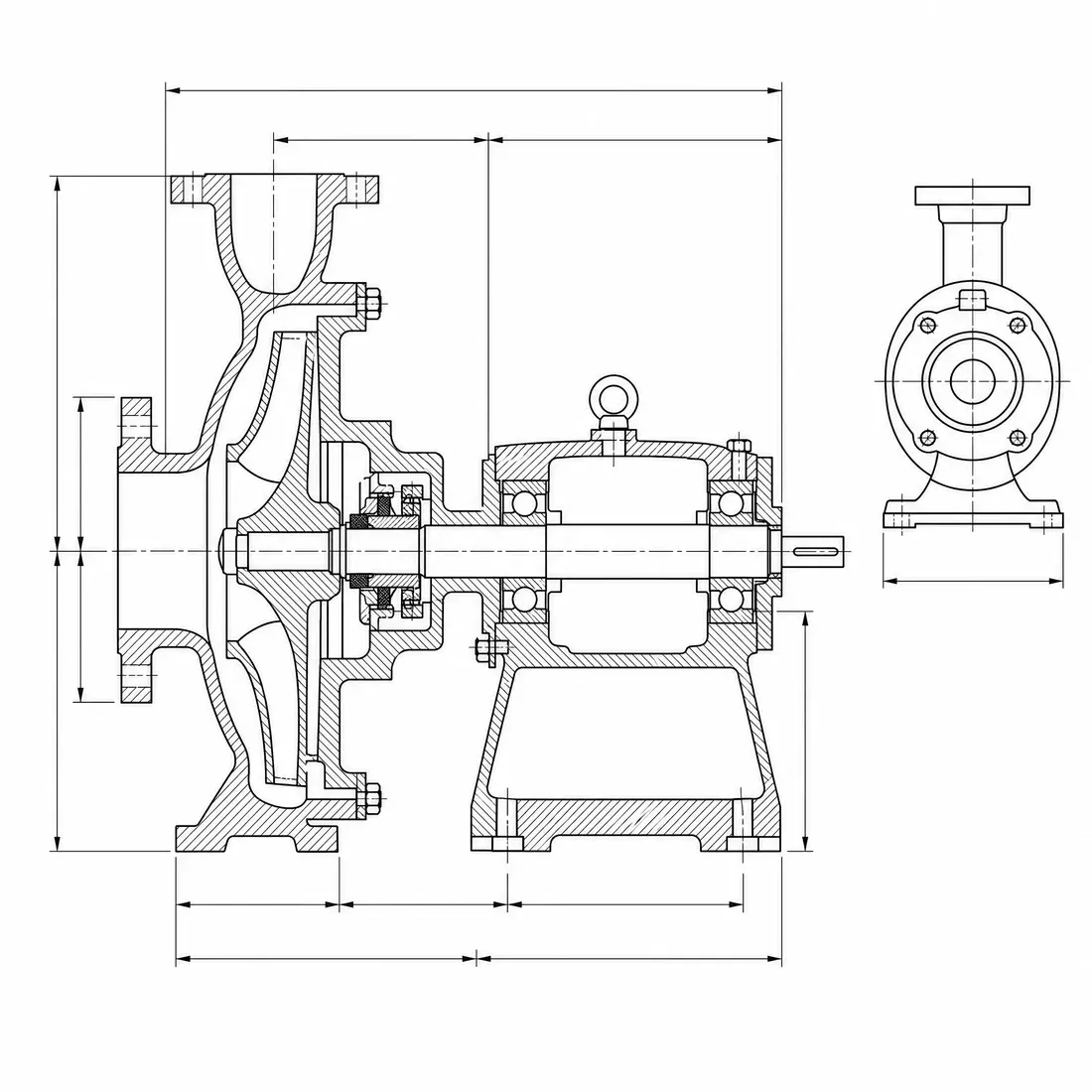
Centrifugal pump, section
A half section through the volute with the impeller, shaft, seal and bearings hatched.
Prompt builder
Build a text to CAD prompt in four fields
Name the part, its size and its features, pick a view, and the text to CAD generator gets one clear prompt. Apply sends it to the generator above with the matching style.
Generated prompt
TechnicalStart from a template
How it works
How the text to CAD generator turns words into a drawing
Your prompt says what the part is. The settings say how the sheet should look. The AI draws both into one PNG.
AI-generated example: spur gear in three views
How to
How to use text to CAD in 3 steps
From a sentence to a drawing you can download.
STEP 1
Describe the part
Type a prompt, tap a TRY chip, or build one with the prompt builder. Say what it is, how big it is and which features it has.
STEP 2
Pick a style and settings
Choose a drawing style, sheet shape, units, detail and size. The button shows the price: 60 credits at 1K or 80 at 2K.
STEP 3
Generate and download
Press Generate drawing, wait a minute or two, then Download PNG, or Convert to DXF to trace the lines for free.
Give real sizes
Two or three numbers with units, such as 80 x 50 x 5 mm, keep the proportions believable.
Name every feature
Holes, slots, fillets, threads and bosses that you leave out may not appear.
One part per prompt
A single part or one small assembly draws cleaner than a whole machine.
Check the numbers
AI dimension values can disagree with each other. Treat the sheet as a concept drawing.
At a glance
What text to CAD gives you, and what it does not
Plain facts about the generator, its price and its limits.
- Input
- A written description up to 1,000 characters, or a sketch or photo (PNG, JPG or WebP up to 10 MB) on the Sketch tab
- Output
- A CAD-style PNG drawing made by AI, at 1K or 2K
- Cost
- 60 credits at 1K, 80 credits at 2K, shown on the button; refunded automatically if a run fails
- Styles
- Technical, orthographic, isometric, blueprint, wireframe, exploded, section, patent, line
- Settings
- Sheet shape, mm or inches, detail level, first or third angle
- Dimensions
- Illustrative values drawn by the AI, not measured; check each one
- To DXF
- Free in the browser with Convert to DXF: traced R12 polylines and an SVG
- Account
- Needed for AI drawings because they use credits; your prompt is saved while you sign in
It does
- Draw a part you describe as a clean CAD-style sheet
- Lay out views, dimension lines and a title block
- Follow your choice of style, units, detail and projection angle
- Hand the PNG to the free tracer for DXF lines
- Refund credits automatically when a run fails
It does not
- Make an editable CAD file, STEP, STL or DWG
- Guarantee that dimension values are right or consistent
- Build a 3D model or a parametric sketch
- Copy a real product exactly from its name
- Replace a checked drawing for manufacturing
Use cases
Where text to CAD drawings help
Fast concept sheets for the moments before real CAD work starts.
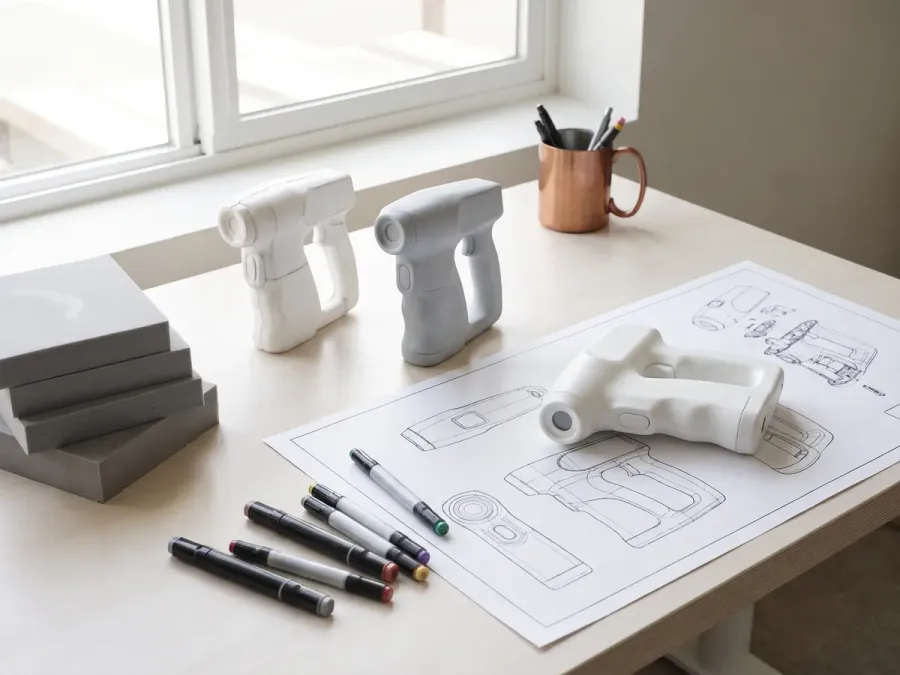
Product concepts
Turn a product idea into a tidy drawing for a pitch, a brief or a first design review.
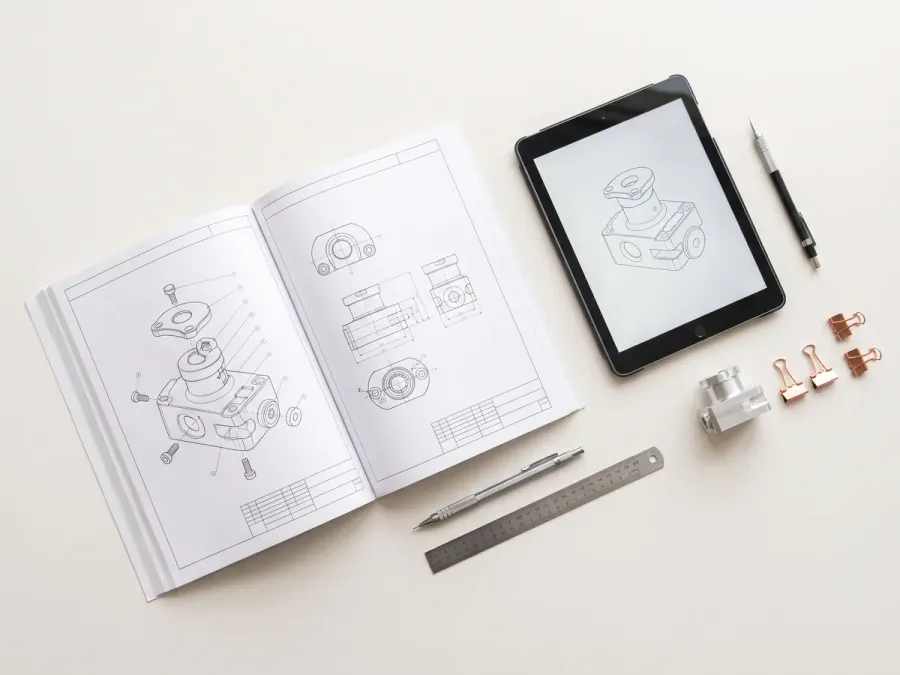
Documentation
Make clean illustrations for manuals, quotes and wikis without opening a CAD program.
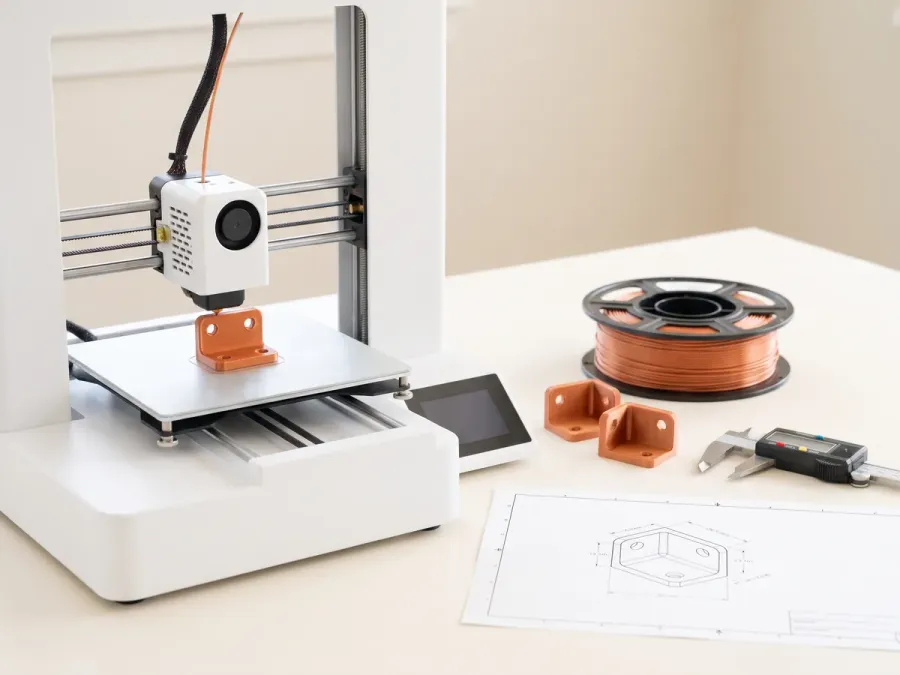
3D printing plans
Sketch the sizes and features of a printable part before you model it.
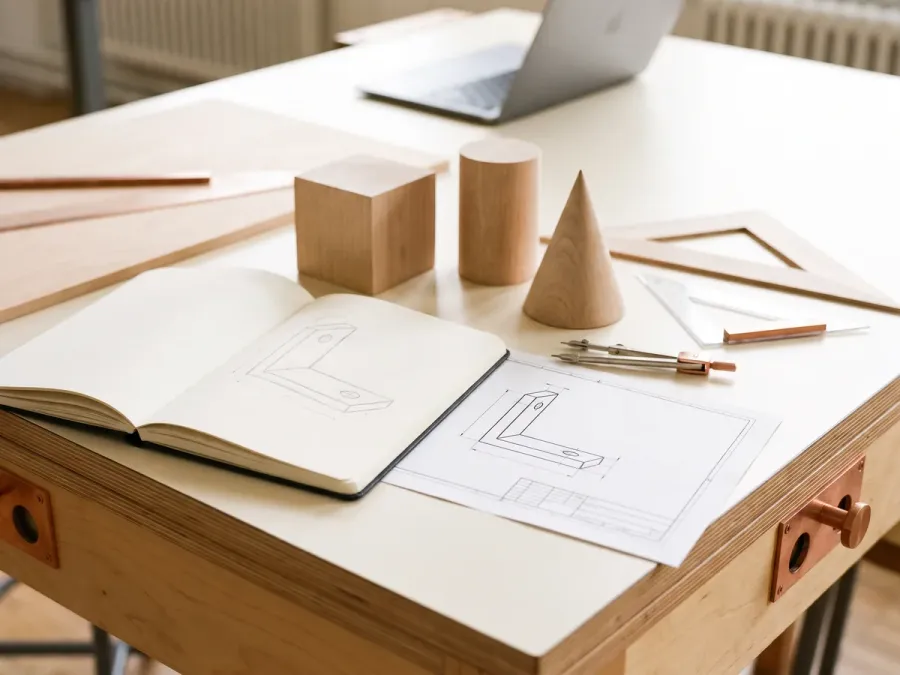
Teaching drawing
Show students how the same part looks as an orthographic sheet, an isometric and a section.
Text to CAD FAQ
Files, accuracy, credits and privacy.
What is text to CAD?
Text to CAD means typing a description of a part and getting a drawing back. Here, an AI image model draws a CAD-style technical sheet from your words, with views, dimension lines and a title block.
Does text to CAD create an editable CAD file?
No. You get a PNG image that looks like a CAD drawing. Press Convert to DXF to trace its lines into a DXF you can edit, or use the sheet as a reference while you model the part.
Is text to CAD free?
Partly. AI text to CAD drawings use credits: 60 at 1K or 80 at 2K, shown before you press Generate drawing. Tracing the result to DXF or SVG is free and needs no account.
What should I write in a text to CAD prompt?
The part name, two or three main sizes with units, and every feature that matters: holes, slots, fillets, threads, bosses. Leave the view and colours to the style picker.
How accurate are the dimensions?
They are drawn by the AI, not calculated, so values can be off or disagree between views. Use the sheet as a concept drawing and check every number before manufacturing.
Which drawing styles can the text to CAD generator make?
Technical sheet, orthographic views, isometric, blueprint, wireframe, exploded view, section view, patent drawing and line drawing. Each style card shows an AI-generated example.
Can I start from a sketch instead of text?
Yes. Switch to the Sketch tab, drop a photo or sketch of the part and add notes. Sign-in then opens in a new tab so your image stays on the page.
Do I need an account?
Only to generate, because drawings use credits. Your prompt and settings are saved in this browser, so after you sign in or sign up they are back in the generator.
Is text to CAD online, and is my prompt private?
It runs online: your prompt is sent to the AI service to make the drawing and kept with your task. The trace to DXF step runs in your browser and uploads nothing.
What if a drawing fails or looks wrong?
A failed run refunds its credits automatically. If a drawing is just not what you meant, add sizes and features to the prompt and generate again.
Can I use the drawings commercially?
Read the terms of service for usage rights. Either way, check the drawing yourself before it goes to a customer or a workshop.
How do I get a DWG file?
Convert the PNG to DXF here, open the DXF in your CAD program and save it as DWG. The lines come across as traced polylines.
Write it, then draw it with text to CAD
One sentence about your part is enough to start. Credits are refunded if a run fails.
Write a prompt